
Operating System
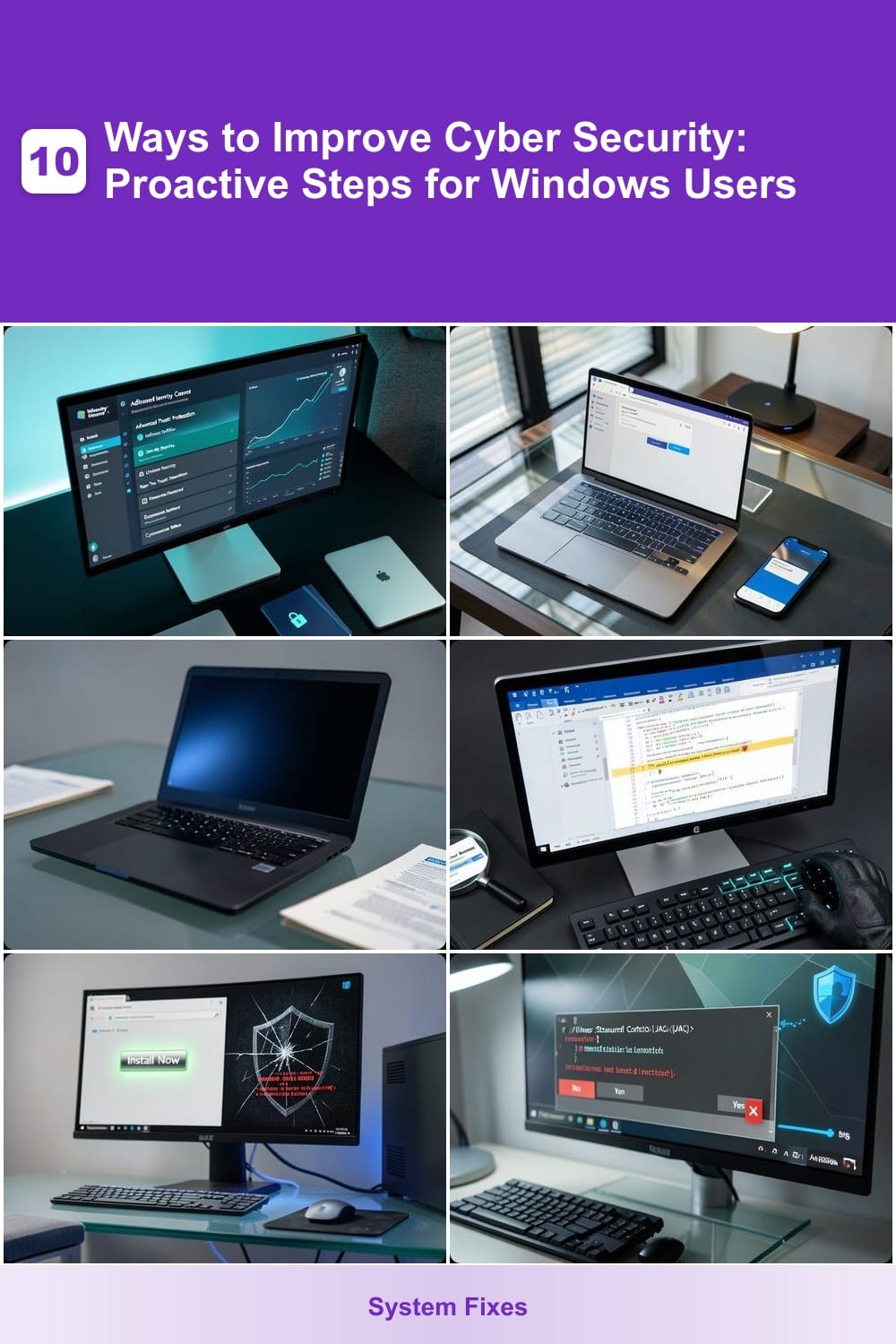
Windows users face constant cyber threats, but proactive security steps can drastically reduce risks. These ten practical strategies—from built-in tools to behavioral habits—will fortify your system against malware, phishing, and data breaches without requiring technical expertise.
Enable Windows Security Center Advanced Threat Protection
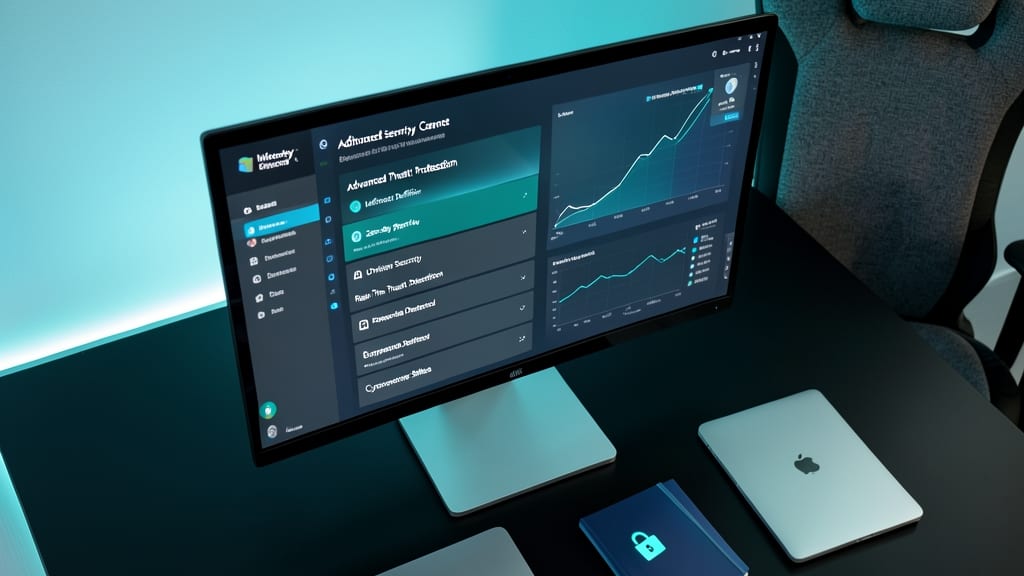
If you handle sensitive work files or financial data, Windows Security Center’s Advanced Threat Protection is your first line of defense against invisible cyber threats. Unlike traditional antivirus that flags known malware, this feature uses AI-driven Microsoft Defender to detect zero-day exploits and fileless attacks—threats that bypass standard security measures entirely.
To enable it, open Windows Security, go to Virus & Threat Protection, then select Manage Settings. Toggle on Cloud-delivered protection and Automatic sample submission (helps improve threat detection globally). The system then analyzes behavior in real-time, blocking suspicious activity before it spreads. Best of all, it runs silently in the background with zero performance impact.
This is non-negotiable for professionals dealing with contracts, client data, or proprietary projects. Even casual users benefit from the extra layer against evolving cyber threats. ✨
Use Microsoft Account with Two-Factor Authentication
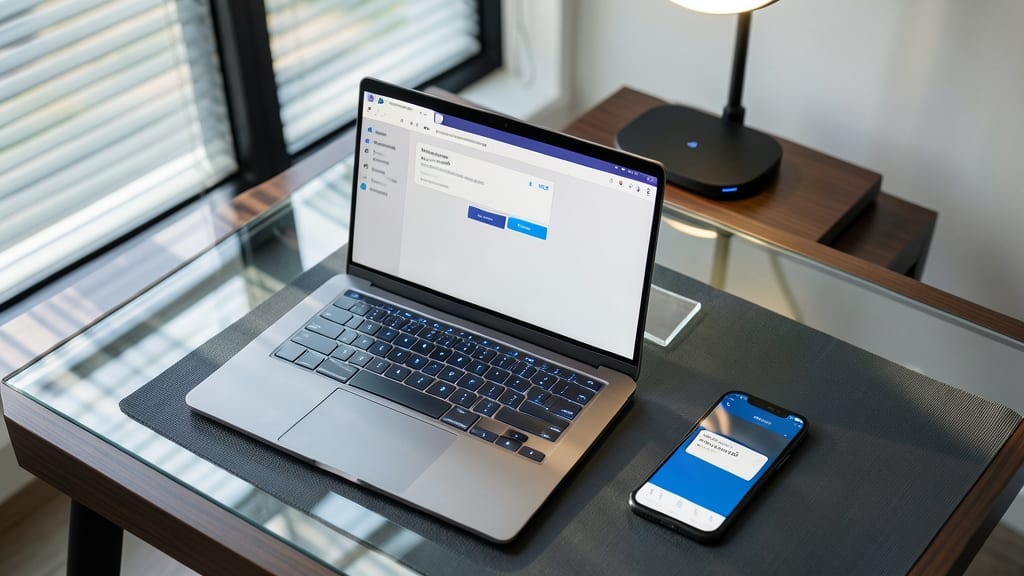
Credential stuffing attacks are on the rise, but a simple two-factor authentication (2FA) setup on your Microsoft Account can block most of them before they start. Unlike basic passwords alone, 2FA adds an extra verification step—whether through a code sent to your phone, an authenticator app, or a security key—making unauthorized access nearly impossible.
Setting it up takes just minutes: Go to Account Security in Microsoft’s settings, select Two-step verification, and choose your preferred method. The Microsoft Authenticator app or SMS codes are the easiest for most users, while security keys (like YubiKey) offer the highest protection. This extra layer stops hackers even if your password is leaked in a data breach.
If you use Microsoft 365, Xbox Live, or other services tied to your Microsoft Account, enabling 2FA is a no-brainer. It’s the digital equivalent of locking your front door and setting an alarm—simple but incredibly effective. 💪
Enable BitLocker Encryption for Critical Drives

Losing a laptop with unencrypted data can feel like handing over your entire professional identity to strangers. BitLocker, Windows' built-in full-disk encryption, transforms your drives into a digital vault—so even if your device falls into the wrong hands, your files stay locked away.
Setting it up takes minutes: just navigate to Control Panel > BitLocker Drive Encryption, select your drive, and choose between AES-256 encryption (military-grade) or XTS-AES (for advanced users). You can unlock it with a PIN, password, or USB recovery key—perfect for balancing security and convenience. The encryption happens in the background, with minimal performance impact on modern hardware.
This is non-negotiable for freelancers, consultants, or anyone handling client data. Even if you’re not in a high-risk field, enabling BitLocker ensures your personal files stay private—no extra software or subscriptions required. ✨
Disable Macros in Office Documents
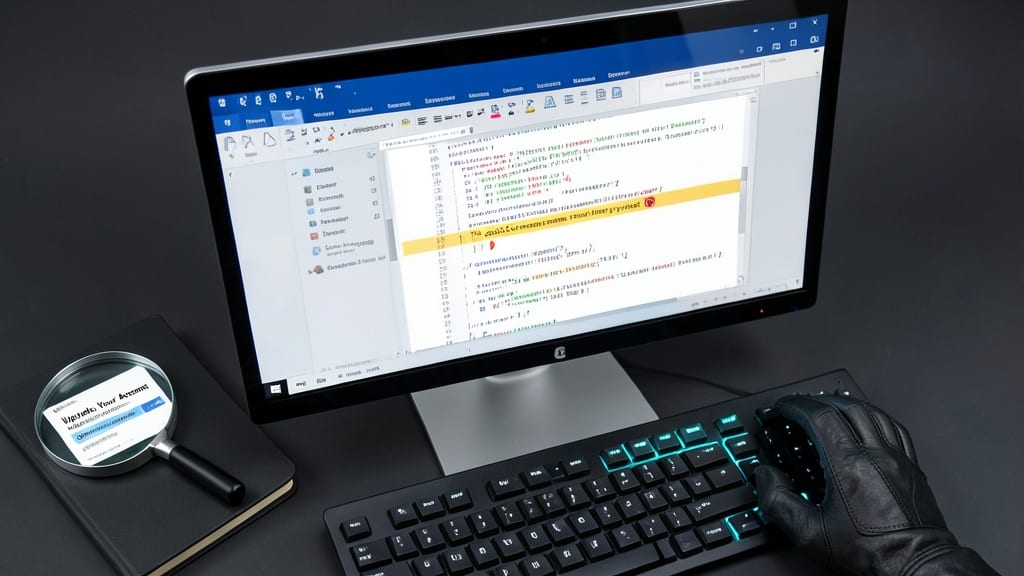
Phishing emails often hide malicious code in Office macros—tiny scripts that can hijack your system when enabled. This simple setting change blocks over 90% of these attacks before they even reach your device, making it one of the most effective defenses for casual users.
To disable macros in Microsoft Word or Excel, go to File > Options > Trust Center > Trust Center Settings, then select Macro Settings. Choose "Disable all macros without notification"—this stops all scripts from running, even in trusted documents. For extra security, enable "Warn before opening" to review macros manually when needed.
This setting is a must for anyone who opens attachments from unknown senders or works with shared files. It’s quick to set up, requires zero maintenance, and stops attacks that slip past even the best antivirus. 💻
Regularly Update Windows and Applications
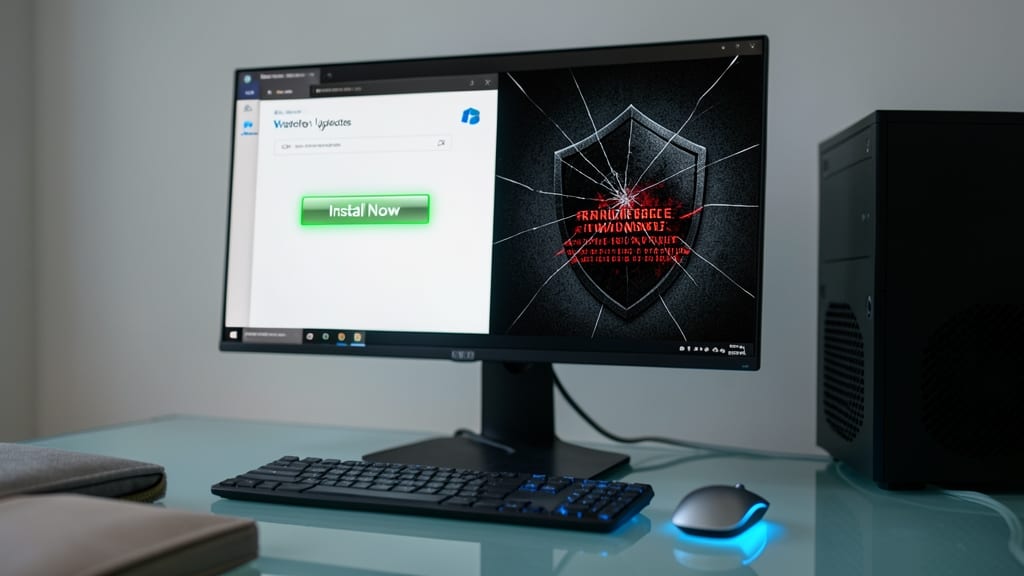
If you've ever delayed updates because of compatibility fears, you're not alone—but those delays leave your system exposed to ransomware and spyware that exploit known vulnerabilities. The good news? Modern updates are more stable than ever, and the security benefits far outweigh the risks.
Windows monthly updates now include critical security patches that block exploits like EternalBlue (used in WannaCry) and ProxyShell (targeting Exchange servers). For apps, tools like Chrome's auto-update or Microsoft Store's forced updates ensure you're always protected without manual effort. Even third-party software often includes one-click update options in their settings.
This is especially vital for small businesses or remote workers—many ransomware attacks start with unpatched systems. Enable automatic updates in Windows Settings (Update & Security > Windows Update) and let your devices handle the rest. Your future self will thank you. ✨
Implement Least Privilege Principle for User Accounts
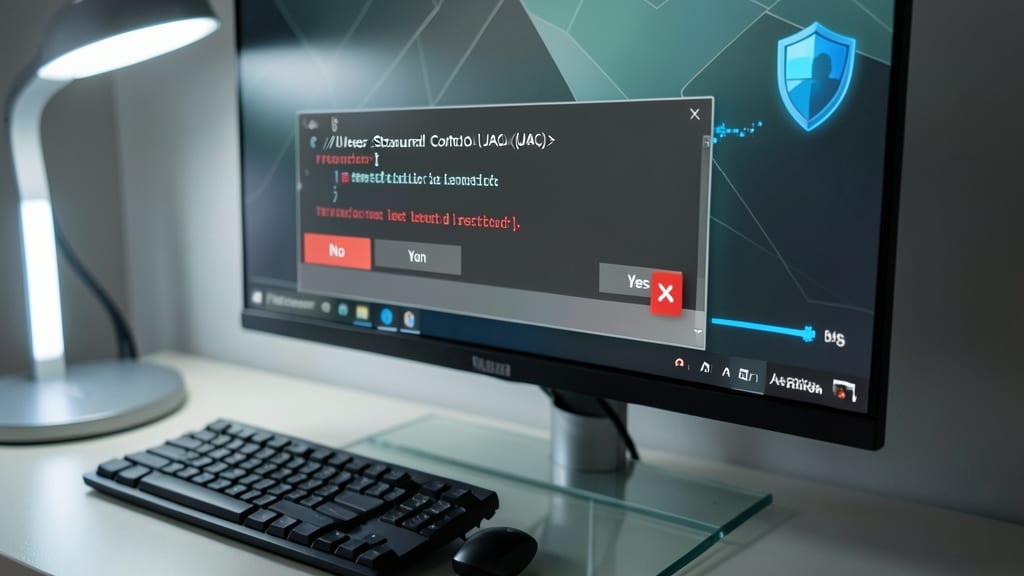
Most malware infections start with a single click—but what if that click couldn’t install anything harmful? The least privilege principle limits damage by restricting accounts to standard user level, where malware can’t modify system files or install software without explicit permission.
Windows makes this easy: create separate standard accounts for each household or office user instead of relying on a shared admin account. This way, if one device gets infected, the rest remain protected. You can still grant admin rights temporarily via User Account Control (UAC) prompts for specific tasks like installing apps. The best part? It’s zero-config—just toggle the account type in Settings > Accounts > Family & other users.
Perfect for families sharing a PC, small offices, or anyone tired of "admin approval required" pop-ups. Your devices stay locked down while keeping daily use smooth. 💻
Use Password Manager with Strong Unique Passwords
Tired of resetting forgotten passwords or worrying about data breaches exposing your accounts? A password manager solves both problems by generating and storing unique, 20+ character passwords for every site—no more "Password123" across services.
Tools like Bitwarden (free) or 1Password auto-fill logins, sync across devices, and flag weak passwords in real time. The zero-config sync (via encrypted cloud or local storage) means your vault travels with you securely, while biometric unlocking adds another layer of protection.
This is your best defense against credential stuffing—where hackers reuse stolen passwords across platforms. Perfect for freelancers juggling client portals, gamers with multiple store accounts, or anyone who’s ever clicked "Forgot Password?" too many times. ✨
Enable Windows Sandbox for Testing Suspicious Files
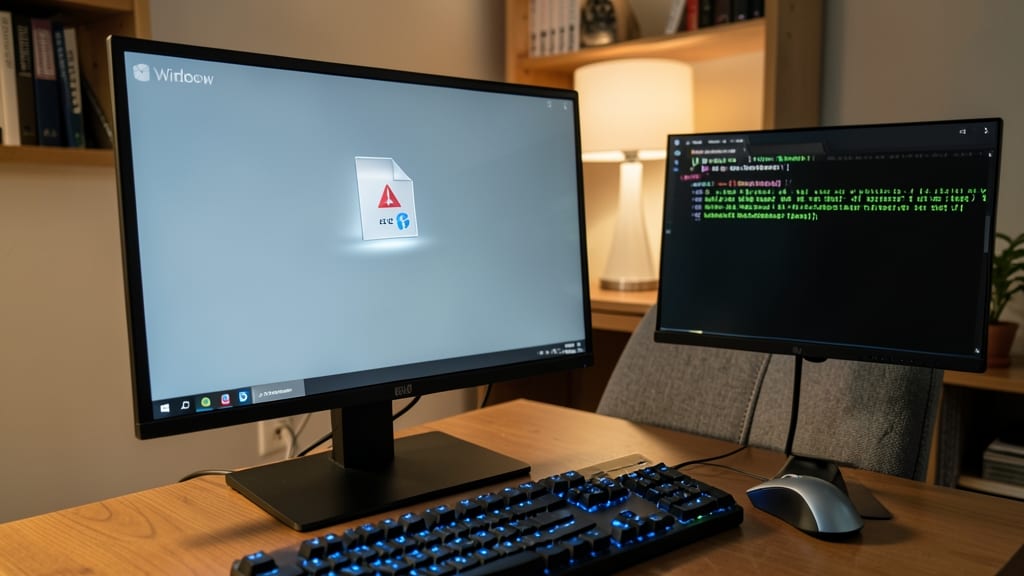
Curious about that sketchy download or shady installer? Windows Sandbox lets you test suspicious files in a fully isolated virtual machine—no risk to your real system. This lightweight tool boots up in seconds and automatically resets after use, making it perfect for IT pros or anyone who’s ever hesitated before running an unknown executable.
Powered by Hyper-V virtualization, it supports 64-bit apps and even GPU acceleration for testing games or graphics software. The setup is zero-config—just enable it in Windows Features and launch from File Explorer. With 1GB RAM and 7GB disk space reserved by default, it’s efficient enough for daily use while keeping your main OS untouched.
Ideal for penetration testers, security researchers, or anyone who downloads software from untrusted sources. No need for heavy virtualization tools—this built-in feature delivers enterprise-grade isolation at no cost. ⚡
Monitor Network Connections with Resource Monitor
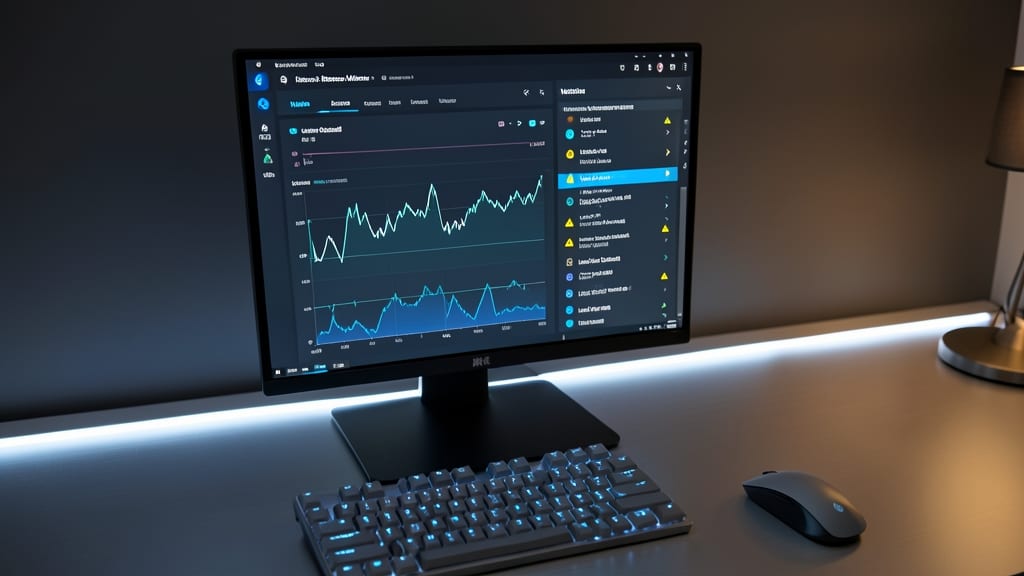
Ever notice your internet suddenly slowing down for no reason? Windows Resource Monitor lets you investigate network activity in real-time, exposing hidden connections that could signal malware or unauthorized data transfers.
Access it by typing "resmon" in the Start menu, then navigate to the Network tab. Here, you’ll see all active connections—including suspicious processes using excessive bandwidth. The TCP Connections view reveals remote IPs, while Listening Ports highlights open vulnerabilities. For deeper analysis, sort by sent/received data to spot unusual traffic patterns.
This tool is a lifesaver for home users who’ve never checked their network activity or IT admins troubleshooting slowdowns. A quick scan could reveal why your system feels sluggish—or worse, why someone else might be using it. 💻
Educate Yourself on Phishing Red Flags
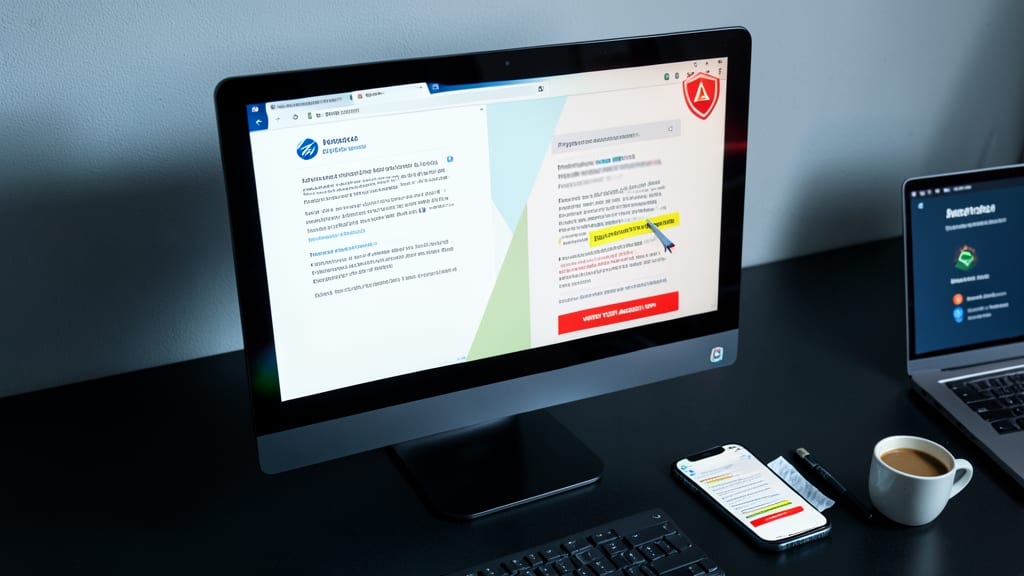
Phishing attacks remain the #1 way hackers breach accounts—yet most people can’t spot them. The key isn’t software, but recognizing three simple red flags in every email or website: mismatched URLs, urgent demands for action, and requests for personal info via unsecured channels.
Start by hovering over links to check for URL spoofing (e.g., paypa1.com vs. paypal.com). Look for generic greetings like "Dear User" instead of your name, or poor grammar/spelling in professional-looking emails. Always verify sender addresses—scammers often use lookalike domains (e.g., @amazon-secure.com).
This skill works for everyone, from grandma to IT pros, because phishing exploits human trust—not technical gaps. Bookmark Google Transparency Report to check suspicious sites instantly. 🌟