
Software
Microsoft Teams isn’t just for businesses—it’s revolutionizing education by breaking down collaboration barriers. These 10 transformative benefits show how it enhances engagement, accessibility, and productivity for students and teachers alike.
Seamless Virtual Classroom Integration
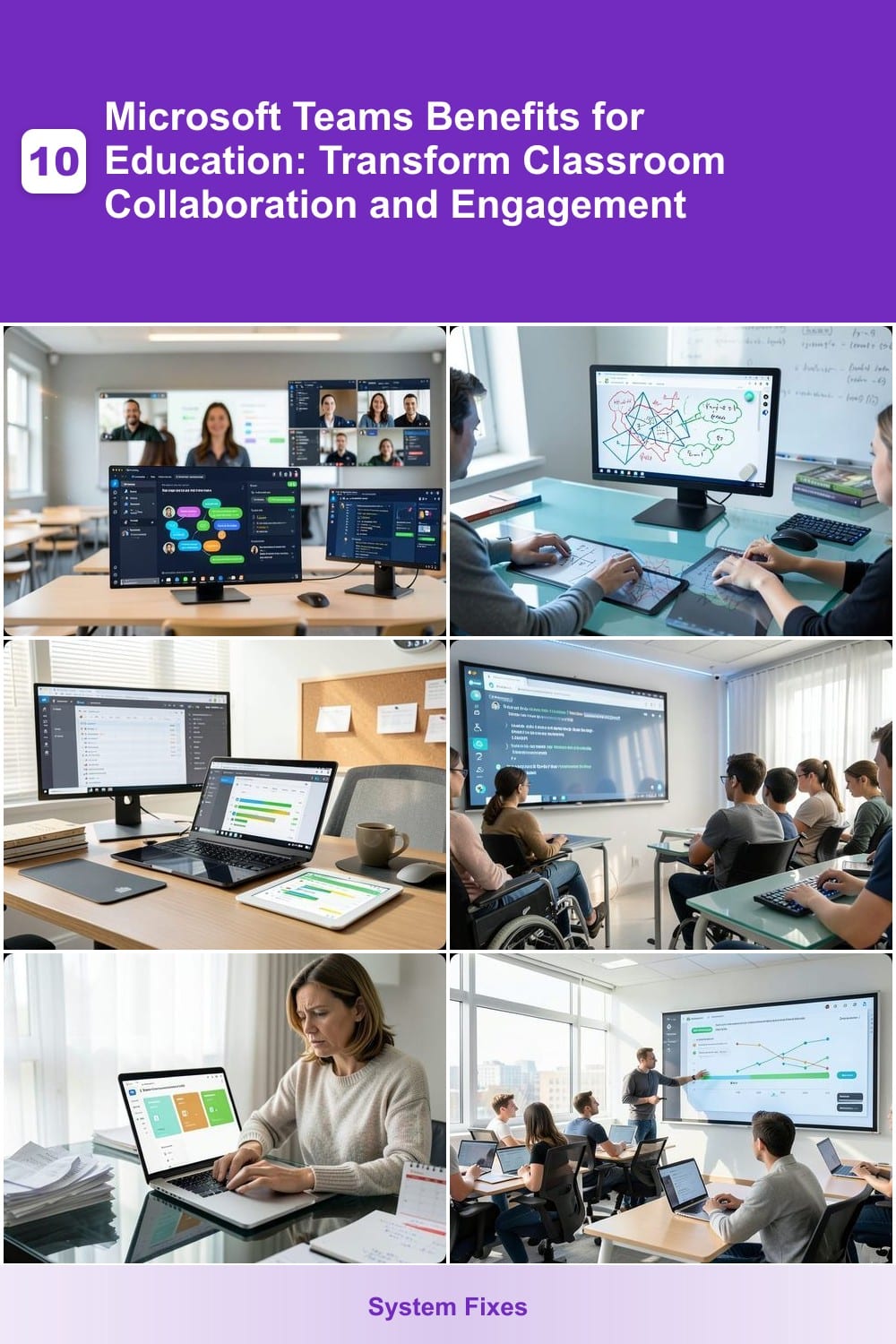
Tired of juggling Zoom, Google Meet, and a separate LMS just to teach? Microsoft Teams’ virtual classroom ecosystem eliminates the chaos by combining live lessons, screen sharing, and interactive polls into one intuitive platform—no app-hopping required.
With 4K video support, background blur, and customizable layouts, your lessons look polished and professional. The built-in whiteboard and screen-sharing tools let you annotate slides or demonstrate concepts in real time, while live polls and quizzes (covered later) keep students engaged without switching apps. For hybrid classrooms, the attendance tracking feature syncs directly with school records, saving hours of manual data entry.
This is the perfect solution for K-12 teachers, college professors, and hybrid schools—whether you’re leading a fully remote class or splitting time between in-person and virtual students. No more tech headaches, just seamless teaching. ⚡
Real-Time Class Collaboration Tools

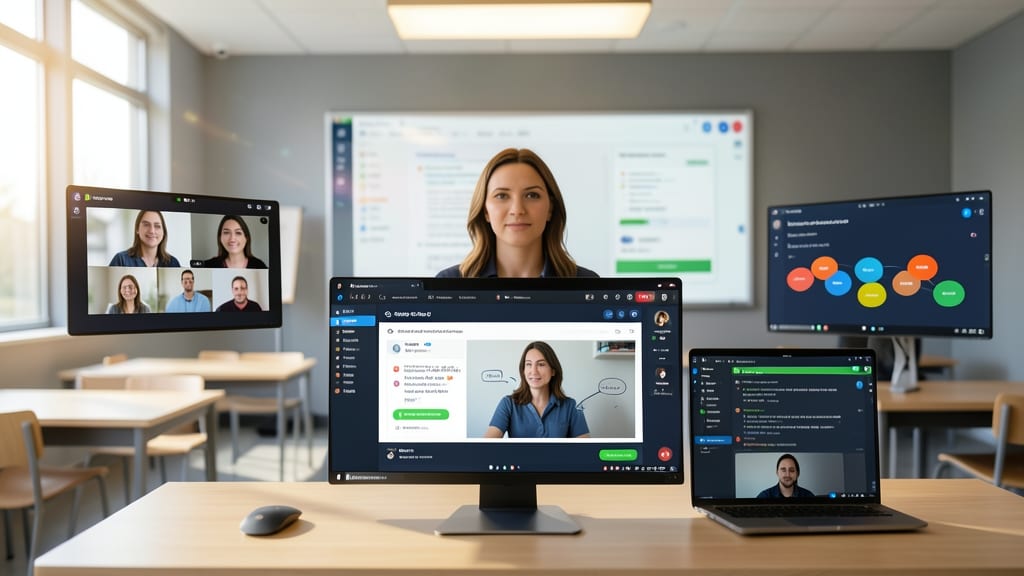
Tired of students working in isolation? Microsoft Teams’ real-time collaboration tools turn homework into a team effort—literally. With Whiteboard, students can solve math problems side-by-side, sketch diagrams together, or brainstorm project ideas in a shared digital space, all while seeing each other’s changes in real time. No more "I’ll text you later" delays or lost drafts—every contribution appears instantly, just like a live classroom.
The shared document editing feature lets multiple students co-author essays, presentations, or lab reports simultaneously, with version history tracking every change. For STEM classes, the math equation editor lets students collaborate on complex problems, while breakout rooms (covered later) can split groups into focused work sessions. The zero-config setup means teachers can enable collaboration with a single click—no complex IT setup required.
This is a game-changer for project-based learning programs, AP classes, or any subject where teamwork is key. Whether it’s a high school debate team drafting arguments or college students designing a group presentation, Teams turns solo work into a live, interactive experience—just like the best in-person collaboration. ✨
Automated Gradebook and Assignment Sync
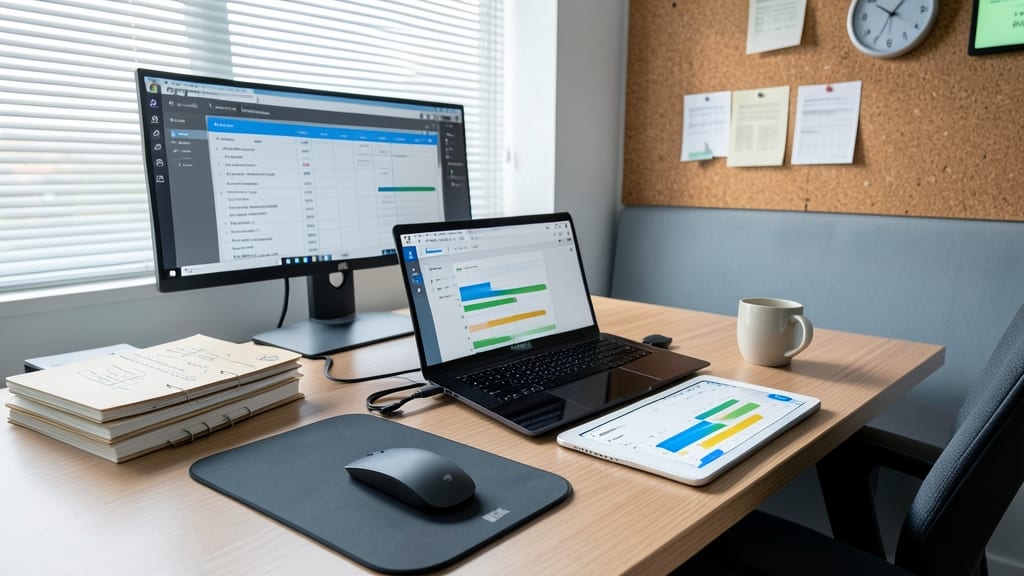
Say goodbye to endless grading sessions and lost papers—Microsoft Teams’ automated gradebook streamlines the entire process by syncing submissions from OneNote and Office 365 directly into your school’s LMS. No more manual data entry or chasing down missing work; the system tracks everything in real time, from assignments to quizzes.
Teachers can provide instant feedback via comments or voice notes, and grades auto-populate into platforms like PowerSchool or Canvas. The integration with Microsoft Forms means quizzes grade themselves, while OneNote Class Notebook keeps all student work organized in one place. Studies show educators save 10+ hours weekly—time that can now go toward lesson planning or student mentorship.
This feature is a game-changer for high-school teachers, college professors, and administrators juggling multiple classes. Whether you’re grading essays, math problems, or group projects, the automation reduces burnout while keeping records accurate and accessible. ✨
Accessibility Features for All Learners
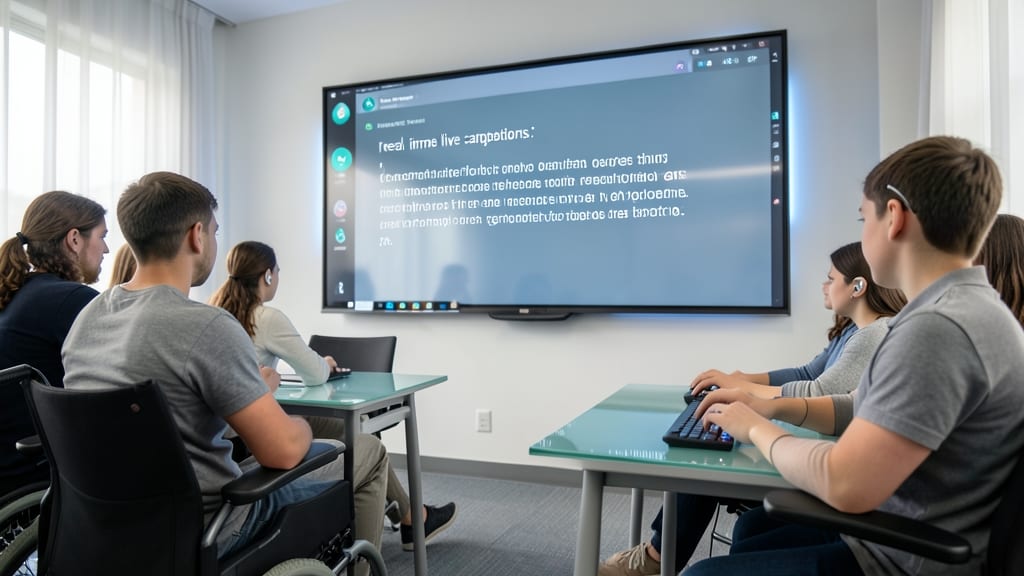
Every student deserves equal access to learning—but not all classrooms are designed with accessibility in mind. Microsoft Teams bridges that gap with built-in ADA-compliant tools that transform inclusivity from an afterthought to a standard feature.
Turn on live captions in real time to support students who are deaf or hard of hearing, or those learning English as a second language. The Immersive Reader simplifies complex text with adjustable fonts, line focus, and even text-to-speech for dyslexia or low literacy levels. For visually impaired learners, screen reader compatibility ensures full navigation of Teams’ interface—no extra plugins required.
These tools aren’t just helpful; they’re mandatory for compliance in many districts. Teachers can enable them with a single click, ensuring no student gets left behind—whether in a hybrid classroom or fully remote setting. ✨
Parent-Teacher Communication Hub
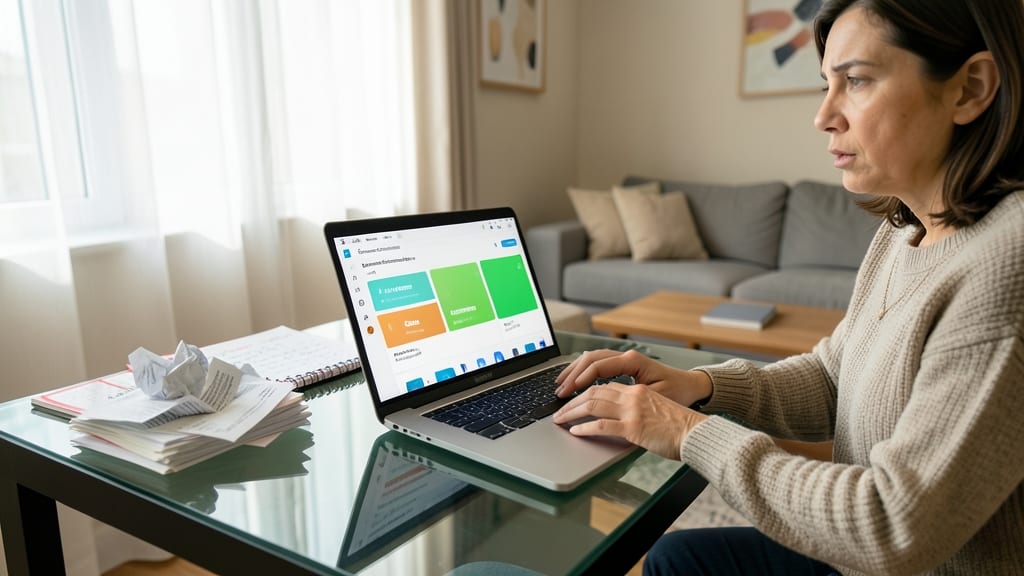
Tired of digging through endless emails to track your child’s school progress? Microsoft Teams’ Parent-Teacher Communication Hub transforms the chaos into a single, organized dashboard. With real-time updates on assignments, grades, and attendance—all accessible via a secure parent portal—you’ll never miss a critical announcement again.
This feature lets parents join class channels to receive announcements, view progress reports directly tied to school systems, and even schedule one-on-one chats with teachers—all within the same platform. The end-to-end encryption ensures sensitive data stays protected, while the mobile-friendly app keeps you connected on the go. No more scattered emails or forgotten voicemails.
Perfect for busy families, this hub is especially valuable for parents of middle or high school students, where communication needs grow more complex. It’s the bridge that keeps everyone informed—without the digital clutter. ✨
Interactive Polls and Quizzes
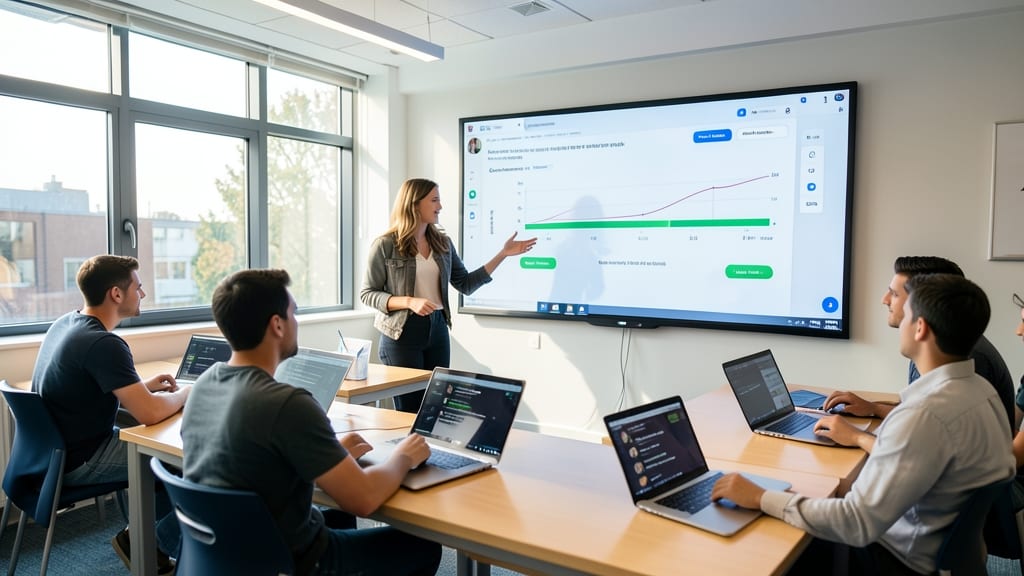
Turn passive lectures into dynamic discussions with Microsoft Teams’ built-in polls and quizzes, designed to transform classroom engagement in real time. Unlike traditional pop quizzes, these tools let you instantly see which concepts need reinforcement—whether you're teaching algebra or American history—while keeping students actively participating.
The Forms integration lets you create multiple-choice, true/false, or ranking polls in seconds, with results displayed as live graphs or charts. For deeper assessments, Quiz Mode supports timed tests with randomized questions, auto-grading, and detailed analytics—all while maintaining FERPA-compliant security. The best part? No extra apps needed—it’s baked into Teams for zero-config setup.
Perfect for hybrid classrooms or flipped learning models, these tools work equally well for icebreakers, exit tickets, or mid-unit check-ins. Teachers using them report 30% higher participation rates in virtual classes, proving engagement isn’t just about screens—it’s about interactive moments. ✨
Secure File Sharing and Storage
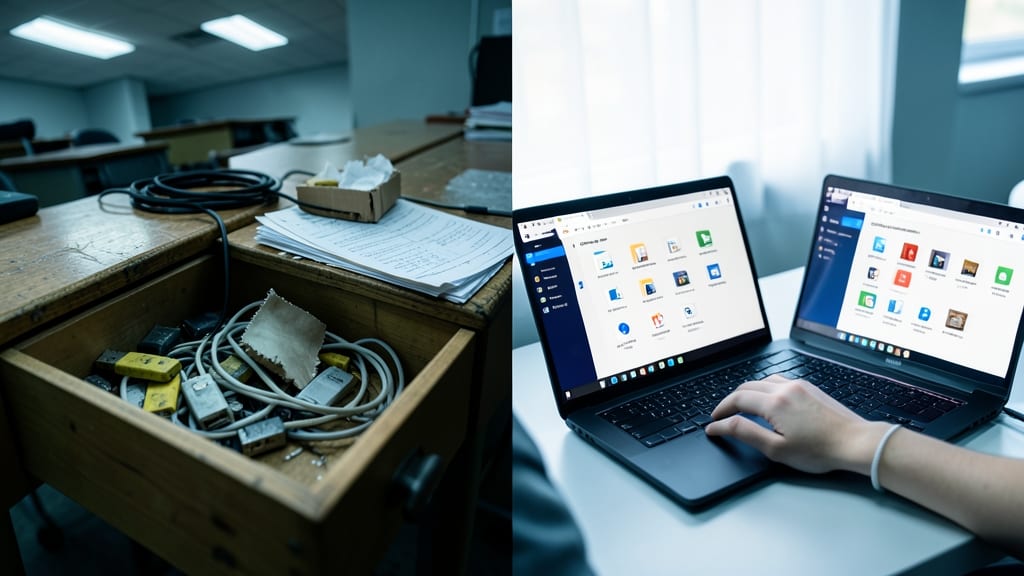
Forget the chaos of lost USB drives or frantic searches for misplaced papers—Microsoft Teams’ seamless OneDrive integration turns every assignment, rubric, and resource into a searchable, cloud-backed asset. Teachers upload materials once, and students access them instantly from school laptops, home PCs, or even tablets during field trips.
With 1TB of free cloud storage per user (via Microsoft 365 Education), files auto-sync across devices, ensuring the latest version is always available. Version history lets students recover drafts after accidental deletions, while shared folders keep group projects organized—no more "I sent it to the wrong email" disasters. Security features like end-to-end encryption and school-admin controls also give IT teams peace of mind.
This is a game-changer for high schools with lab rotations or colleges where students juggle multiple classes—no more "I left my flash drive at home." ✨
Breakout Rooms for Group Work
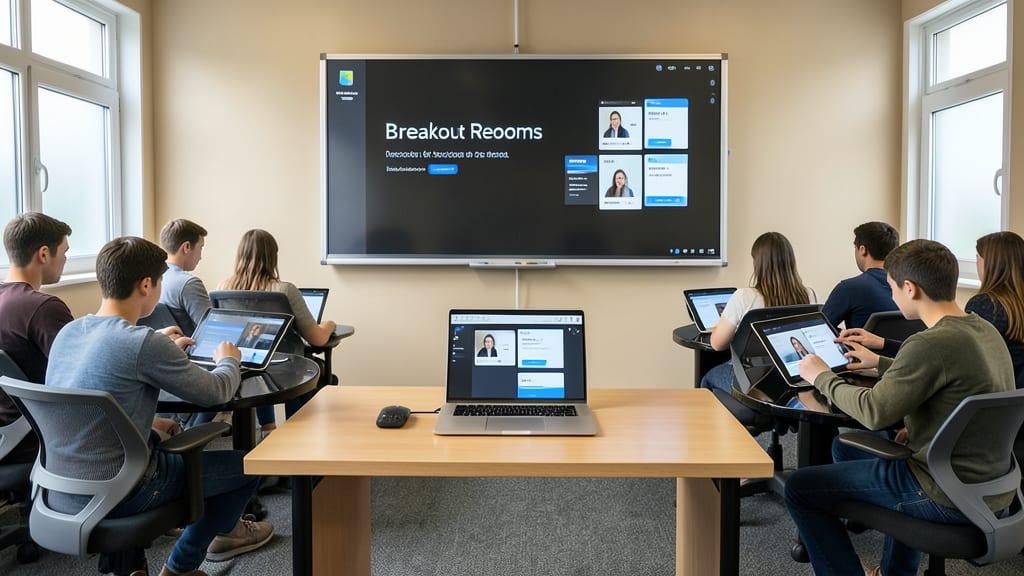
Need to simulate in-person group work without rearranging desks? Microsoft Teams’ breakout rooms let you split classes into virtual subgroups with just one click—whether for language practice, debate drills, or collaborative projects.
Teachers can randomize groups to mix students or assign specific teams for targeted learning. Each room gets its own chat, screen-sharing, and whiteboard tools, while the main session stays open for quick check-ins. With up to 50 breakout rooms in a single meeting, even large classes stay engaged without tech overload.
Ideal for language labs, STEM team challenges, or book club discussions, this feature turns any device into a flexible classroom. 💡
Integration with STEM Tools
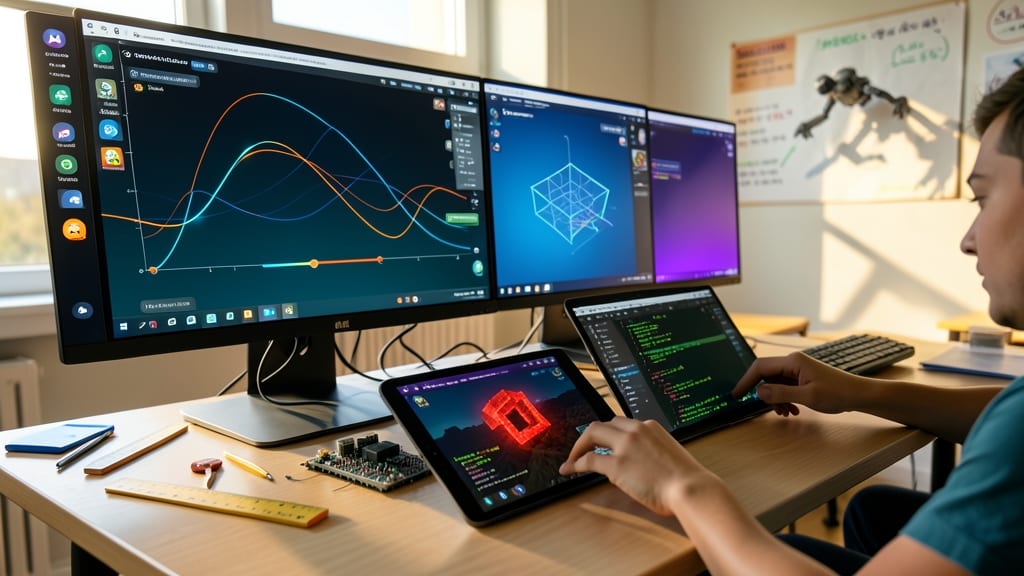
Forget static worksheets—Microsoft Teams turns STEM lessons into interactive adventures by seamlessly integrating with tools like Desmos, GeoGebra, and Minecraft: Education Edition. These integrations let students visualize complex equations, manipulate 3D geometry, or even code their own virtual worlds—all within the same platform they use for class discussions.
Teachers can embed Desmos graphs directly into lessons, letting students adjust variables in real time to see how they impact outcomes. Meanwhile, Minecraft: Education Edition transforms physics problems into buildable simulations, like designing bridges to test engineering principles. The zero-config setup means no extra logins or complicated workflows—just drag-and-drop functionality that works across devices.
This is a game-changer for hands-on learners, especially in middle and high school STEM programs where engagement often lags with traditional methods. 💡
Cost-Effective School-Wide Adoption
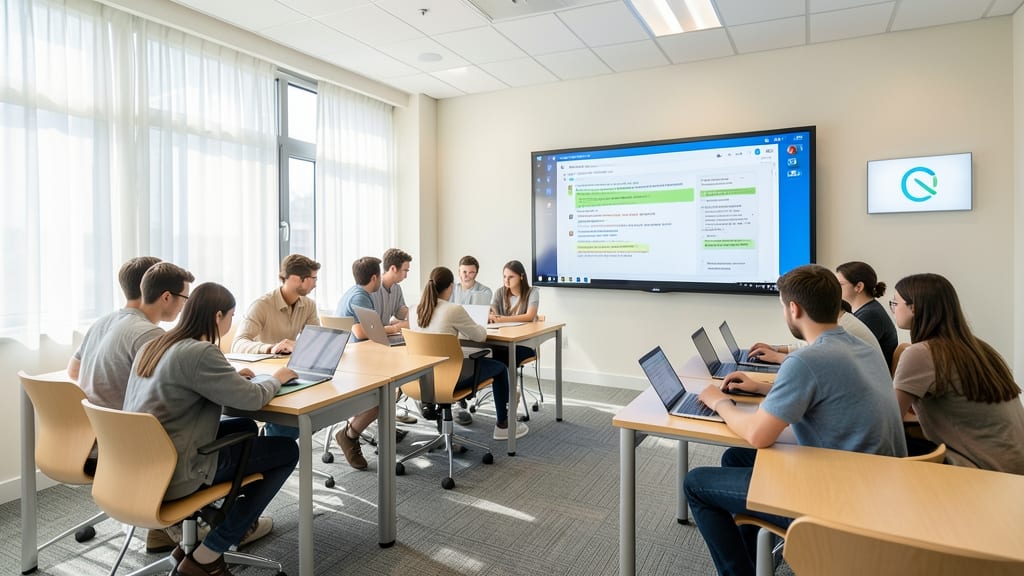
School budgets don’t need to break for cutting-edge tech—Microsoft Teams delivers enterprise-grade collaboration at no cost through Microsoft 365 Education. Unlike third-party tools that require expensive subscriptions, Teams is included with every Microsoft 365 A1 license, which is free for students and educators.
For schools with limited funds, this means zero upfront costs for the core platform while still gaining access to breakout rooms, live captions, and secure file sharing. Even districts needing more advanced features can opt for Microsoft 365 A3 or A5 licenses at a fraction of the cost of competing solutions, with pricing starting as low as $3 per user per year.
This makes Teams the smart choice for budget-conscious districts—whether you’re a small K-12 school or a large university department looking to scale collaboration tools without overspending. 💪