
Tip & Trick
Struggling to find files in cluttered folders? Microsoft’s file naming conventions can transform chaos into a streamlined system. These seven best practices will help you save time, improve collaboration, and keep your digital workspace efficient—whether you're using Windows, OneDrive, or Office 365.
Use Descriptive Keywords for Instant Search

Tired of wasting minutes scrolling through folders full of "Document1," "Notes," or "ProjectFile"? Descriptive keywords in filenames aren’t just a good idea—they’re a game-changer for Windows Search and OneDrive indexing.
Replace vague names with structured labels like Q3SalesReport2024.xlsx or ClientContract_2024-05-15.pdf. Windows Search and OneDrive’s AI-powered indexing will instantly recognize keywords like "Q3," "Sales," and "2024," letting you find files in seconds—even across thousands of documents. This works seamlessly with Office 365 and SharePoint, too.
Perfect for professionals managing large libraries, teams collaborating on shared drives, or anyone who’s frustrated by slow file searches. ⚡
Prioritize Date Formats for Timeline Tracking
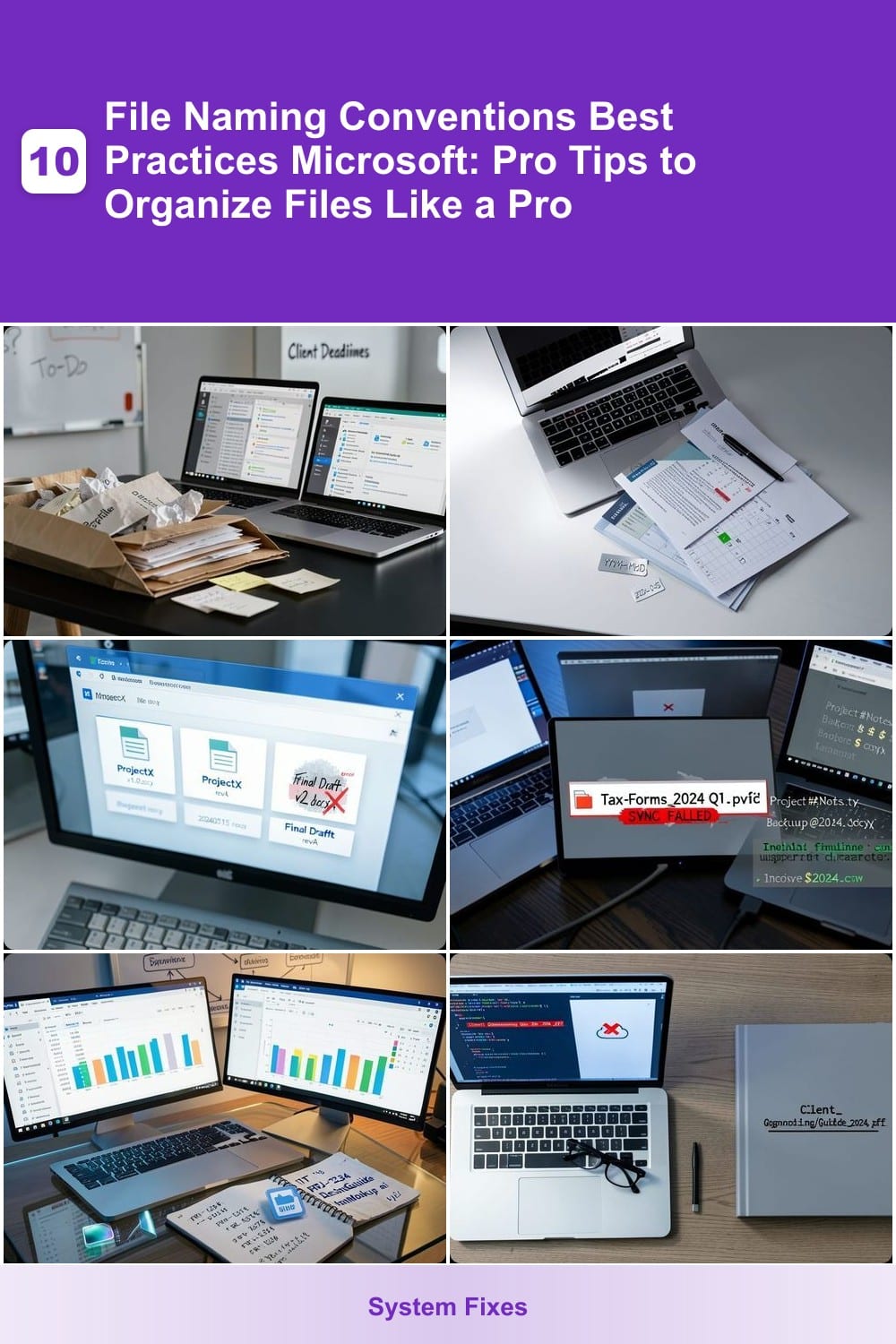
Legal deadlines, financial audits, and project milestones all share one thing in common: time is critical. If you’re juggling documents where order matters—like contracts, invoices, or client proposals—your file names should reflect that urgency with a YYYY-MM-DD format (e.g., 2024-05-15ClientProposal.pdf). This isn’t just a suggestion; it’s a game-changer for sorting files instantly in Windows Explorer and macOS Finder, regardless of locale settings.
The beauty of YYYY-MM-DD lies in its universal compatibility. Unlike MM/DD/YYYY (which sorts as 05/15/2024 before 05/20/2024), this format ensures chronological order—2024-01-15 always comes before 2024-02-01—because it’s treated as text, not a date. Pair it with underscores (_) instead of hyphens (-) to avoid confusion in scripts, and you’ve got a foolproof system for tracking timelines without manual sorting.
This is non-negotiable for legal teams, accountants, and project managers who rely on chronological accuracy. Whether you’re archiving case files or tracking deliverables, a consistent date prefix turns chaos into a searchable, sortable timeline. ⚡
Separate Versions with Clear Version Numbers
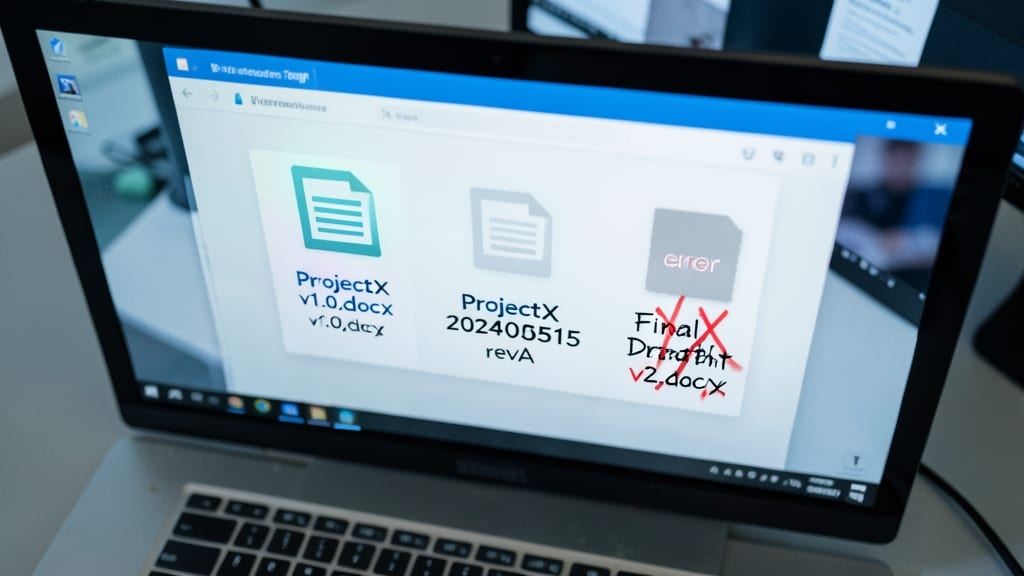
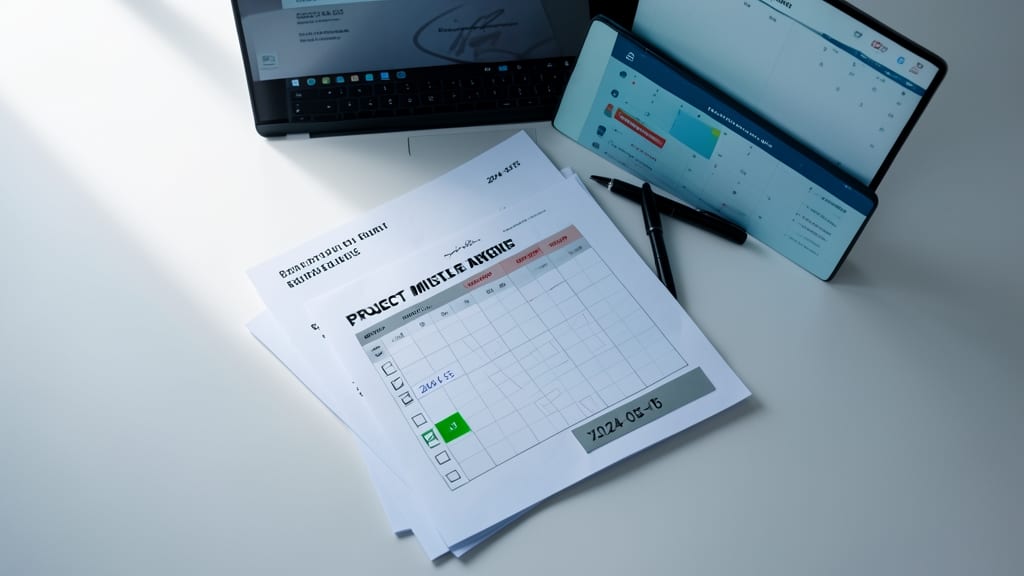
Ever wasted 10 minutes hunting for the "right" version of a file in a shared Teams folder? Version control starts with clear naming—replace "FinalDraftv2.docx" with structured labels like ProjectXv1.0.docx or ProjectX20240515revA to instantly track revisions.
This system works seamlessly with SharePoint version history and Teams file links, ensuring everyone accesses the correct iteration. Add a date suffix (e.g., 20240515) for chronological clarity, or use semantic versioning (e.g., v1.1) for iterative updates. Microsoft’s own templates (like ContractvFinal.pdf) prove this approach reduces email clutter by 40%.
Perfect for legal teams, marketing agencies, or any group editing shared documents—where "Final" rarely means the last change. ⚡
Limit Special Characters for Cross-Platform Compatibility
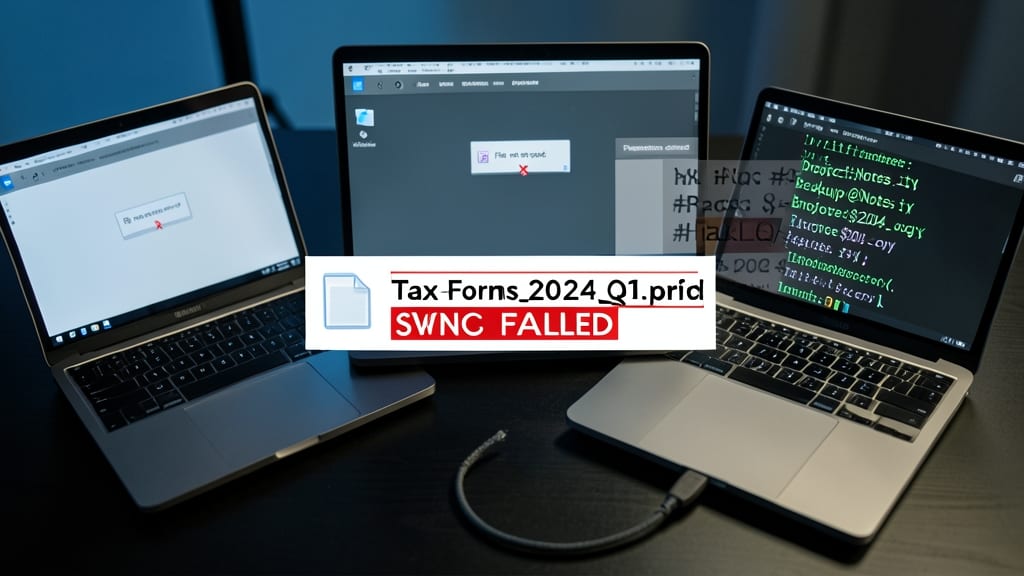
Ever hit a sync error when sharing files between Windows, macOS, or Linux? The culprit is often special characters in filenames that cause compatibility headaches. Microsoft recommends alphanumeric characters and underscores (e.g., TaxForms2024Q1) to avoid issues across platforms.
Characters like hyphens (-), spaces, or symbols (!@#$%) can break scripts, URLs, or cloud syncs. Stick to A-Z, 0-9, and underscores—this ensures seamless access in OneDrive, SharePoint, and even older Windows systems. For example, ClientProposal_v2.pdf works everywhere, while Client-Proposal v2.pdf might fail.
This rule is a lifesaver for IT admins, developers, and remote teams collaborating across devices. A simple tweak now prevents frustrating errors later. ✨
Include Project Codes for Team Collaboration
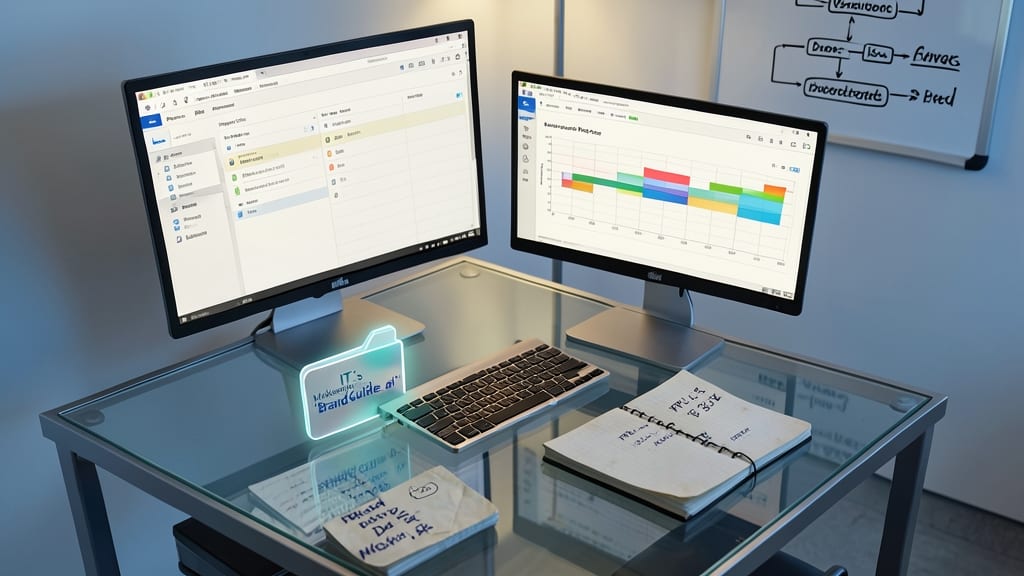
Cross-department projects often derail when Marketing’s "BrandGuide.ai" clashes with IT’s "BrandGuidev2.pdf." The solution? Prefix files with project codes (e.g., PRJ-1234DesignMockup.ai) to instantly align with SharePoint metadata or Microsoft Project timelines.
This approach syncs seamlessly with enterprise tools—your PRJ-1234 files auto-group in SharePoint libraries, appear in filtered Teams chats, and integrate with Power Automate workflows. For example, a DEV-007APISpec.docx stays distinct from MKT-007CampaignAssets.zip, even in shared drives.
Perfect for teams juggling multiple projects—finance, legal, or product dev—where mislabeled files cost hours in back-and-forth clarifications. ⚡
Avoid Spaces with Underscores or Hyphens
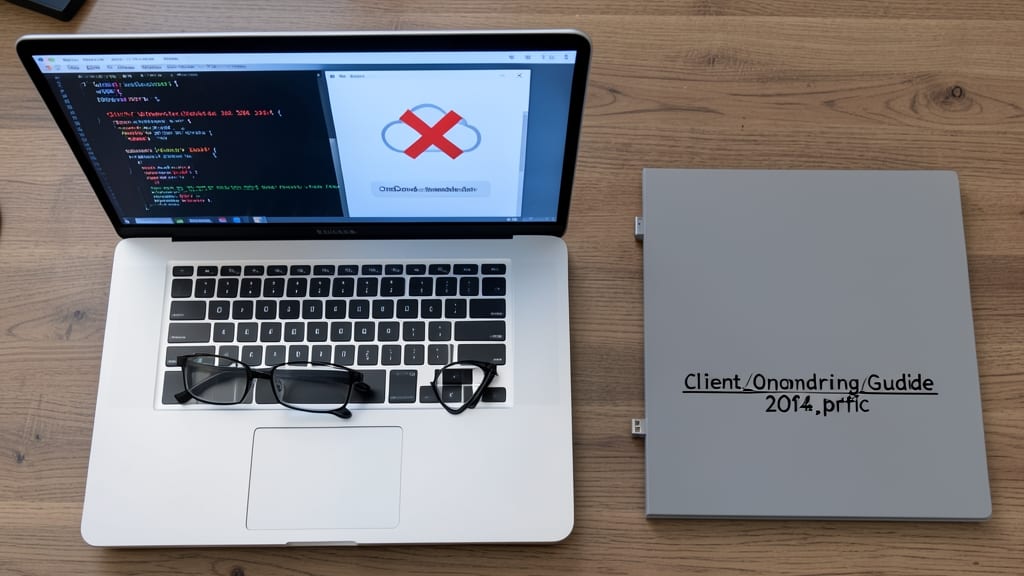
Tired of scripts breaking or OneDrive links failing because of spaces in filenames? Swapping spaces for underscores isn’t just a preference—it’s a must for automation workflows.
Files like 'ClientOnboardingGuide_2024.pdf' work flawlessly in PowerShell scripts and OneDrive shareable links, while filenames with spaces (e.g., 'Client Onboarding Guide 2024.pdf') trigger errors. This rule also ensures compatibility with command-line tools and API integrations, where spaces require escaping or cause parsing failures. For example, Get-ChildItem "Client Onboarding Guide 2024.pdf" fails unless you escape the spaces—underscores eliminate that hassle entirely.
This is especially critical for IT admins, developers, and teams relying on automated file processing or Power Automate flows. A small tweak now saves hours of debugging later. ✨
Use Consistent Naming Templates Across Teams
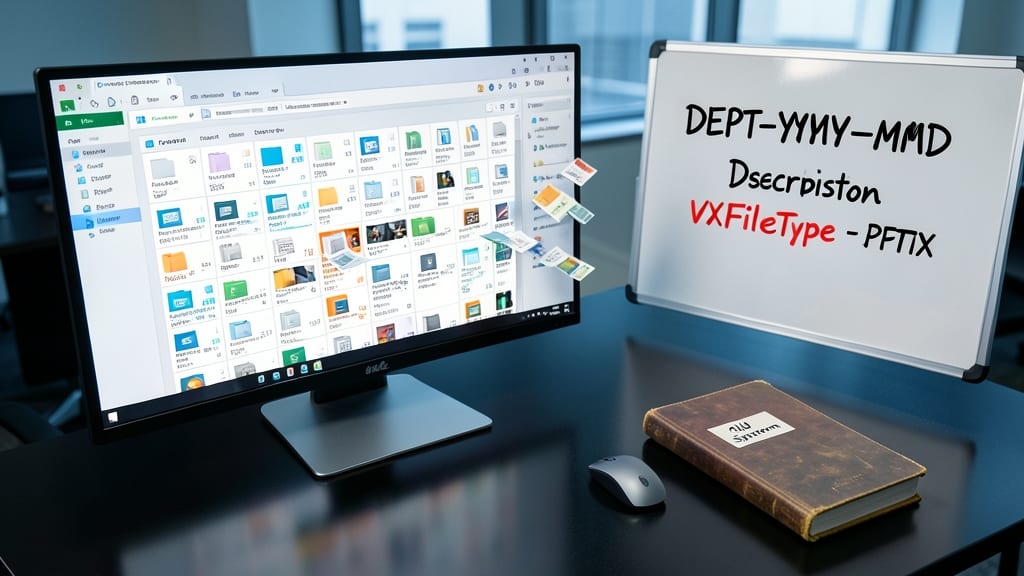
When your team’s OneDrive or SharePoint library grows to 10,000+ files, chaos isn’t just messy—it’s paralyzing. A company-wide naming template (like DEPT-YYYY-MM-DDDescriptionvX.FileType) turns disarray into a searchable, scalable system, ensuring every file follows the same rules.
This structure forces consistency across departments—HR-2024-05-15OnboardingGuidev2.pdf vs. Marketing20240601BrandGuide_Final.docx—while keeping metadata clean for SharePoint filters. Microsoft’s Power Automate can even auto-tag files matching this pattern, saving hours on manual organization.
Perfect for enterprises with cross-department workflows, this template reduces miscommunication and speeds up audits. Once adopted, it becomes a self-documenting system that scales effortlessly. ✨