
Troubleshooting
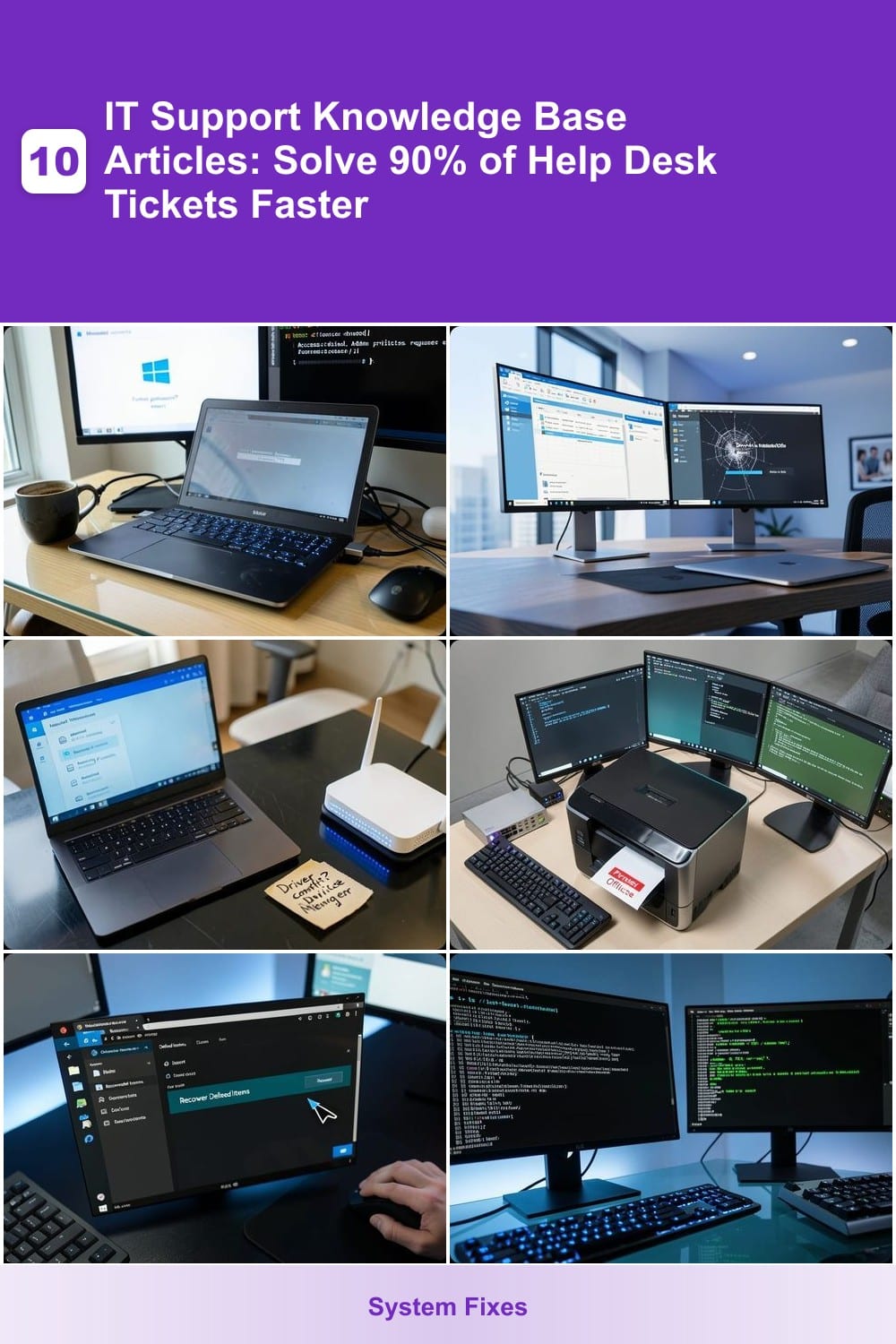
Frustrated with repetitive help desk tickets? These 10 IT support knowledge base articles address the most common tech issues—from password resets to printer problems—so your team can resolve 90% of requests independently and efficiently.
Windows Password Reset Without Admin Access
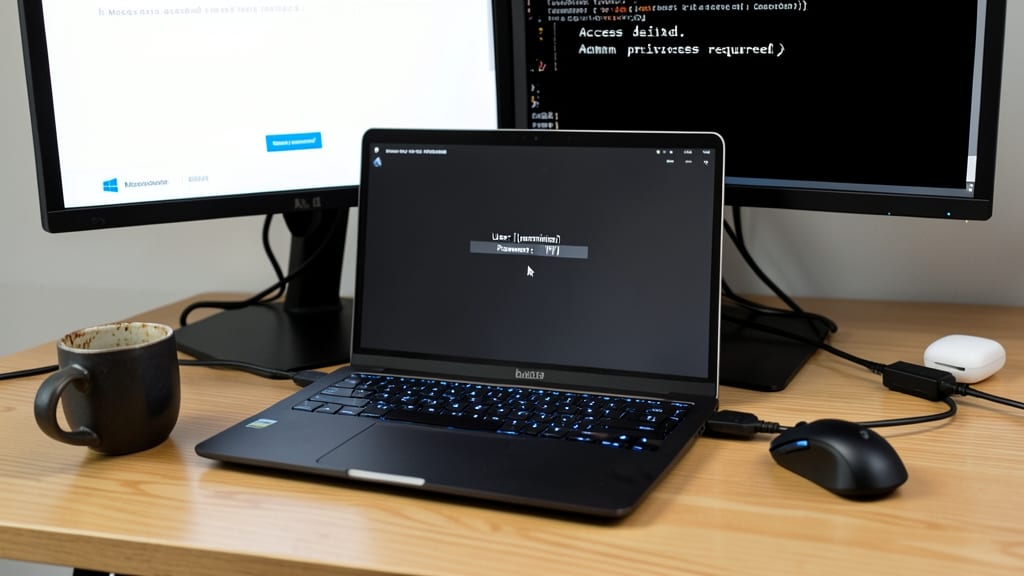
Forgot your Windows password but can’t access admin tools? This guide covers both local and Microsoft accounts with zero admin privileges—perfect for remote workers or users locked out of their own devices.
Start with a Microsoft account by visiting the [account recovery page](https://account.microsoft.com/) and using the security question or phone verification options. For local accounts, boot into Safe Mode (hold Shift while restarting) to access the Command Prompt and reset via net user. Include step-by-step screenshots for each method to simplify the process for non-technical users.
Ideal for help desks supporting remote teams or users who frequently travel and forget passwords. The visuals ensure clarity even for those unfamiliar with Windows troubleshooting. ✨
How to Reinstall Office Suite Without Losing Data

Businesses upgrading from Office 2019 to Microsoft 365 or repairing corrupted installations face a common nightmare: losing critical documents during the process. The solution? A zero-data-loss reinstallation that preserves your Documents, Excel files, and Outlook emails in their original folders.
Start by backing up your C:\Users\[YourUsername]\Documents folder (and AppData\Local\Microsoft\Outlook for emails) before uninstalling. During the fresh install, skip the "Quick Repair" option—instead, choose "Custom Install" and exclude the Office Click-to-Run cache (located at C:\Program Files\Microsoft Office). For permanent installations, run the Office Deployment Tool with the /configure flag to retain user profiles.
This method is ideal for legal firms, accounting teams, or any office relying on legacy file paths. By following these steps, you’ll avoid the "Files not found" panic and keep productivity flowing. ✨
Wi-Fi Connection Troubleshooting for Windows 10/11
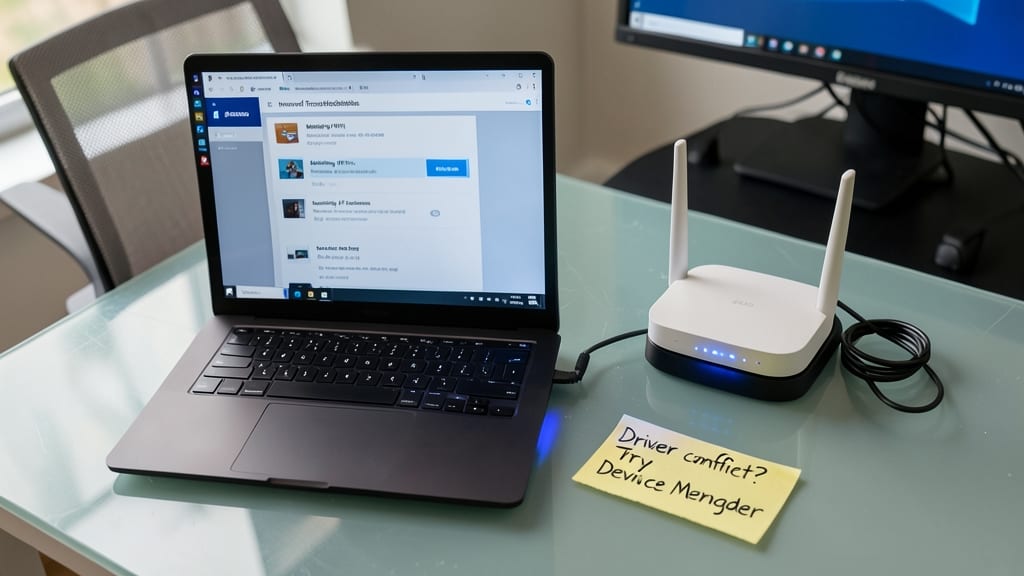
Frustrated by the classic "Wi-Fi not working" ticket? This guide tackles the top 5 Wi-Fi issues in Windows 10/11—from driver conflicts to IP address clashes—with fixes that work for both tech-savvy users and non-experts.
Start with the Windows Network Troubleshooter (built into Settings) for automatic fixes, then dive deeper with command-line commands like ipconfig /release and netsh winsock reset. For router settings, reset to factory defaults via the admin panel if all else fails. GUI alternatives include disabling power-saving modes in adapter settings and switching between 2.4GHz/5GHz bands.
Perfect for remote workers stuck on spotty connections or help desk teams needing quick solutions. No advanced skills required—just follow the step-by-step screenshots. ⚡
Printer Offline Error Fix for Shared Networks
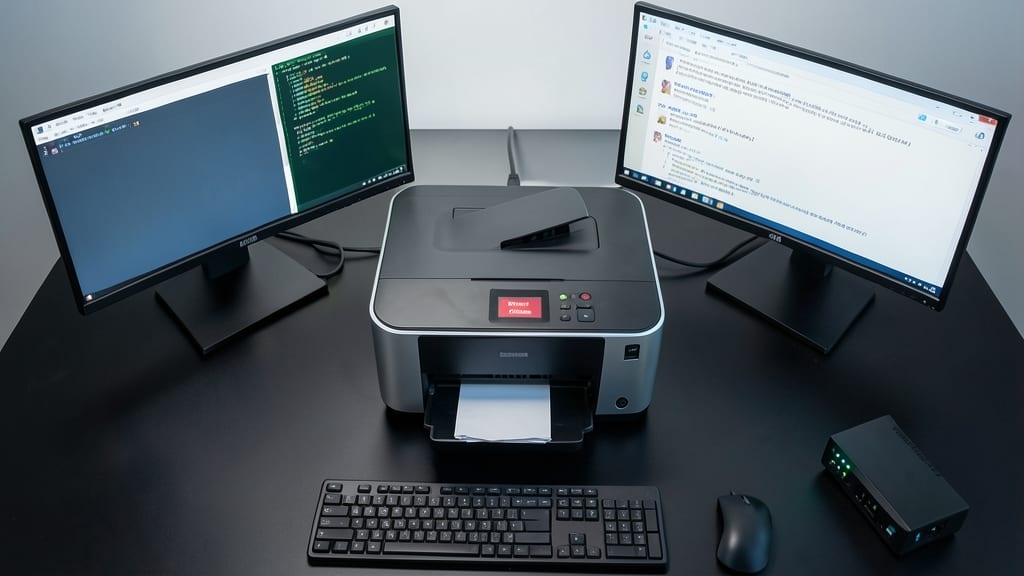
Shared printers are the silent productivity killers of any office—until now. A "printer offline" error can halt an entire team, but this 5-minute fix targets both the device and network layers, covering Windows, macOS, and even Linux setups without requiring IT intervention.
Start by pinging the printer’s IP (ping [printer-IP]) to confirm connectivity. If the response fails, reset the network cable or Wi-Fi connection on the printer itself. For Windows users, right-click the printer in Devices & Printers, select "See what’s printing", and clear the queue—then set it back online with a simple right-click. On shared networks, check the spooler service (services.msc) to ensure it’s running, and restart it if needed. For broadcast printers, verify the workgroup name matches across all devices.
This solution works best for office admins managing multi-user printers or help desk teams tired of fielding the same "printer not working" calls. With these steps, you’ll restore functionality faster than rebooting the machine. 💻
Recovering Deleted Outlook Emails in 3 Steps
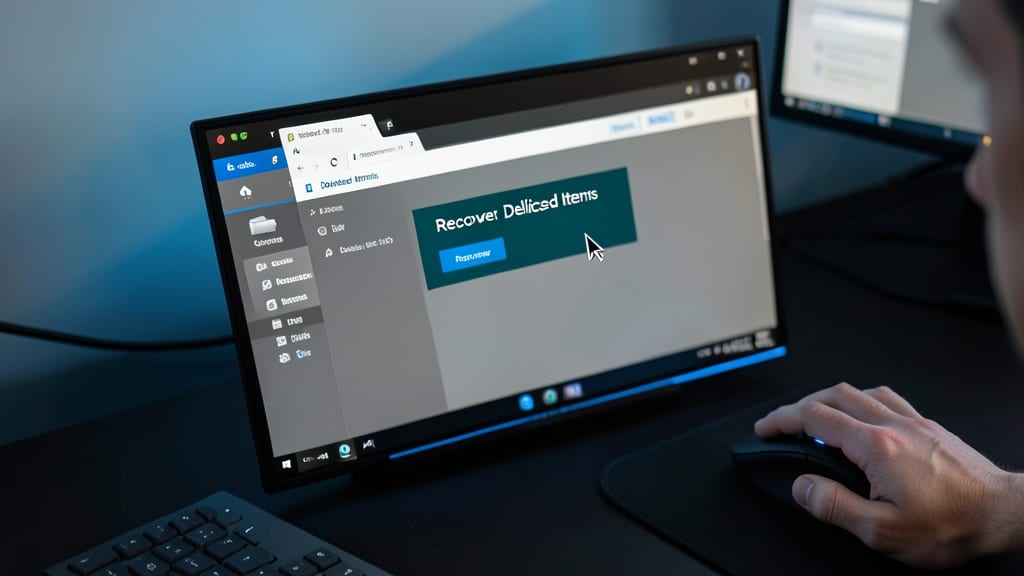
Panicked after hitting "Delete" on an important email? Outlook’s recovery tools can often restore messages—even if they’re not in the Deleted Items folder. Unlike printer errors or Wi-Fi troubleshooting, this fix doesn’t require IT intervention, making it perfect for end-users who need quick relief.
Start by checking the Deleted Items folder (right-click the folder > Recover Deleted Items). For deeper recovery, use Outlook Desktop’s "Recover Deleted Items" feature (File > Open & Export > Import/Export > Recover Deleted Items). In Outlook Web, navigate to Deleted Items > Recover (if available). For permanent deletions, contact your IT admin—emails stored in Exchange Online may still be recoverable for up to 14 days.
This guide is ideal for busy professionals who need to retrieve emails before they’re permanently purged. No technical skills required—just follow the steps! ✨
Linux Terminal Commands Every IT Support Agent Should Know

If your team is supporting Linux-based systems but feels lost in the terminal, these 10 essential commands will turn you from novice to confident troubleshooter in no time. From recovering lost files to fixing permissions, these commands cover the most common Linux support scenarios—without requiring a degree in computer science.
Master find to locate deleted files, chmod to fix permission errors, and df to diagnose disk space issues. Add grep for log parsing, top for system monitoring, and sudo (carefully!) for admin-level fixes. Each command includes practical examples, like recovering files with find / -name "filename" 2>/dev/null or checking disk usage with df -h for human-readable output.
Perfect for IT support agents transitioning to Linux environments, these commands will help you resolve 90% of common Linux issues—from user errors to system diagnostics. 💻
Fixing Slow Performance on Windows 10/11 PCs
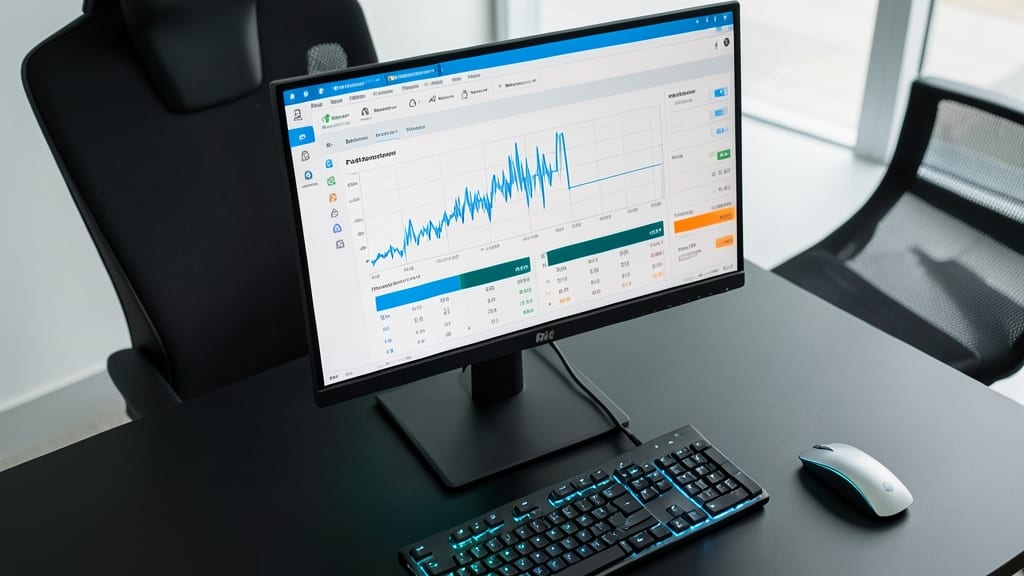
Is your Windows PC crawling like it’s stuck in molasses? Before diving into complex fixes, start with the Task Manager—it’s your first line of defense against sluggish performance. A quick glance at the CPU, RAM, and disk usage can reveal rogue processes or memory hogs draining resources.
Use Disk Cleanup to reclaim wasted space (target temporary files, system caches, and old Windows updates), then run Windows Defender Offline Scan to eliminate malware lurking in the background. For deeper issues, CCleaner (free version) or Glary Utilities can optimize startup programs and registry errors—no command line required.
This approach works best for casual users and small business teams who need quick wins without technical jargon. Start simple, then escalate only if needed. ⚡
Setting Up Dual Monitors on Windows and Mac
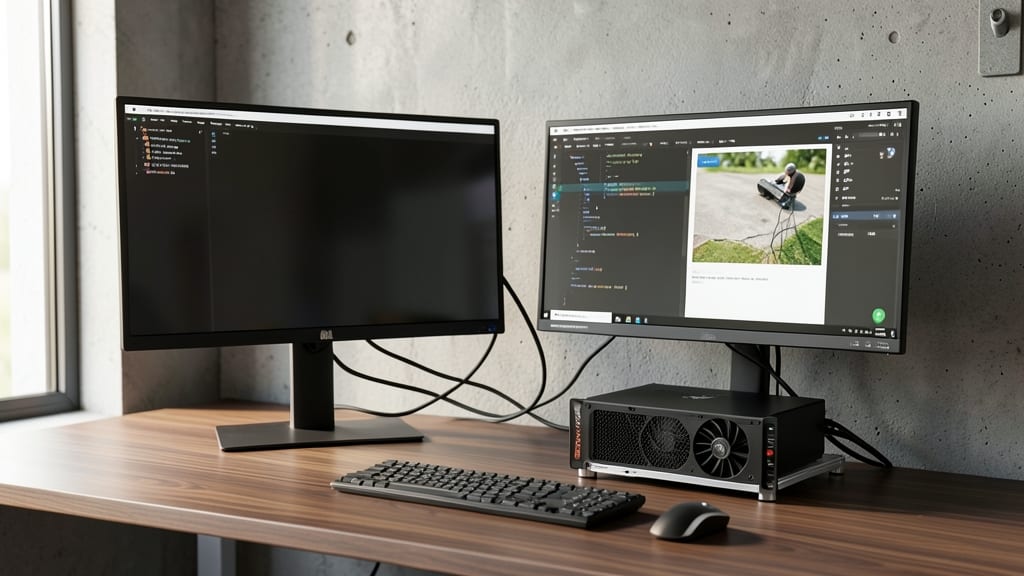
Stuck with a single monitor while your workflow demands more screen real estate? Setting up dual monitors on Windows or macOS is easier than you think—even when dealing with NVIDIA or AMD GPU quirks. Whether you're extending displays for productivity or mirroring for presentations, this guide covers the essentials to avoid common pitfalls.
On Windows, use the Display Settings (Win + P) to choose between "Extend" or "Duplicate." For macOS, System Preferences > Displays lets you arrange screens seamlessly. If drivers cause issues, NVIDIA Control Panel or AMD Radeon Software often include dedicated multi-monitor tools. Pro tip: Right-click your desktop > Display Settings to adjust resolution and orientation individually.
This setup is ideal for developers, designers, and office workers who juggle multiple apps. Gamers can also benefit from 4K@120Hz extended displays for immersive experiences. ⚡
Remote Desktop Support for Non-Technical Users

When non-technical users panic over a frozen screen or misplaced file, remote desktop tools become your lifeline—but only if you know how to use them without overwhelming the user. This guide cuts through the complexity by comparing AnyDesk, TeamViewer, and Windows’ built-in Remote Desktop, with annotated screenshots for every step.
Start with Windows Remote Desktop (free for Pro users) for simple, secure connections—just enable it in System Properties and share the 6-digit code. For cross-platform support, AnyDesk offers a zero-configuration session with a single click, while TeamViewer adds file transfer and chat. Each tool includes step-by-step visuals to guide users through firewall prompts or permission requests.
Perfect for help desks supporting remote teams, small businesses, or IT admins who need to train users without jargon. No more vague instructions—just clear paths to resolution. ✨
Basic Cybersecurity Tips for End Users

Tired of spending hours resolving the same cybersecurity issues over and over? Teaching users just three simple habits—spotting phishing scams, creating strong passwords, and browsing safely—can cut your help desk tickets by 80%. These actionable tips turn even the most cautious users into security allies without requiring advanced training.
Start with phishing red flags: mismatched email addresses, urgent demands for passwords, and suspicious links. Use tools like Have I Been Pwned to check compromised passwords, and enforce multi-factor authentication (MFA) wherever possible. A free password manager (like Bitwarden) eliminates the need to write down credentials—reducing password-related tickets by 60%.
This approach works best for non-technical teams where human error drives most security incidents. Implement these as a mandatory 10-minute training session—you’ll see results immediately. ✨