
PowerPoint
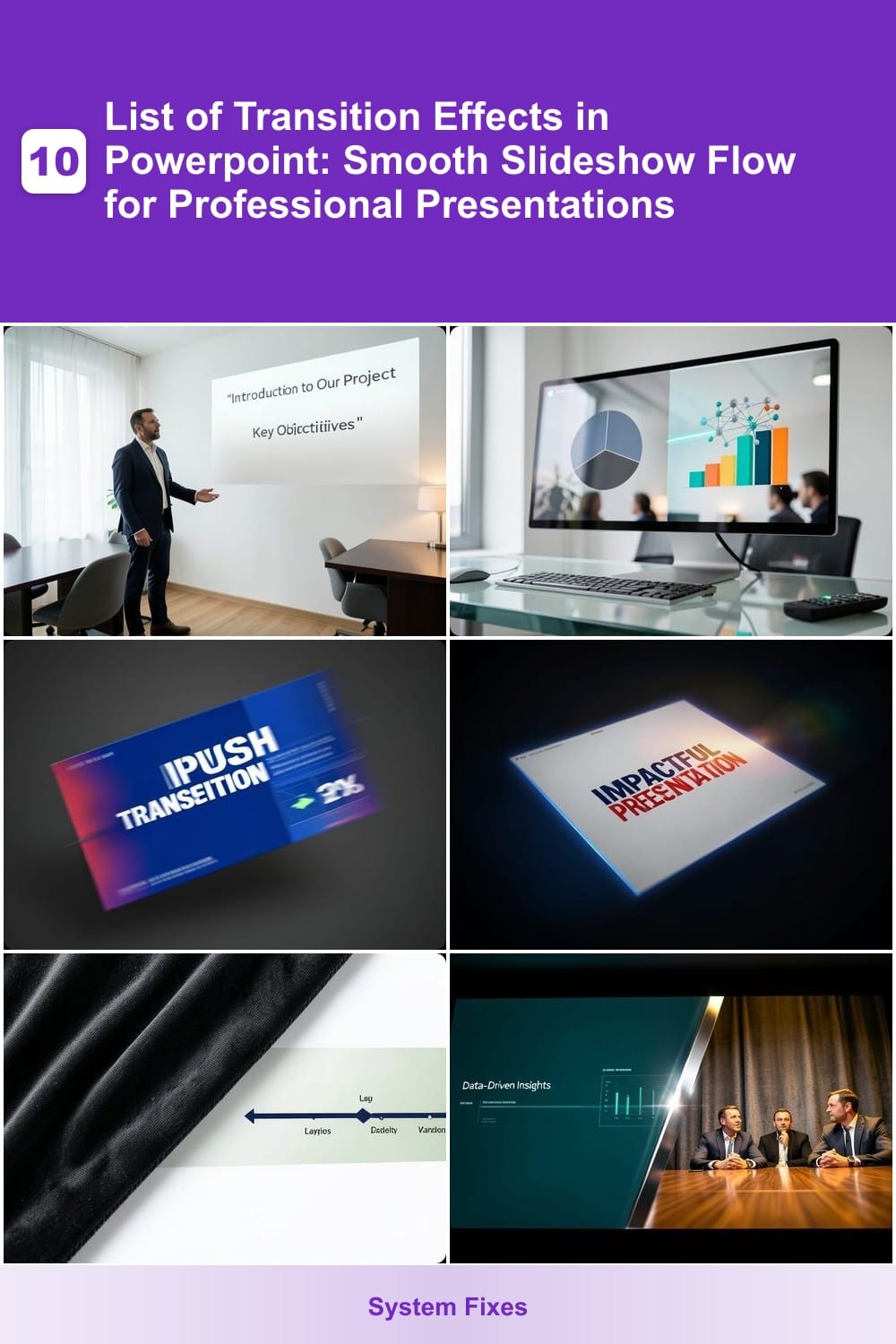
Want to make your PowerPoint presentations flow seamlessly while keeping your audience engaged? These seven transition effects transform ordinary slideshows into polished, professional experiences—ideal for business, education, and creative projects.
Fade Slide Transition
The Fade Slide Transition is the timeless choice for presenters who prioritize elegance over flash. Unlike jarring effects, it smoothly dissolves one slide into the next, ensuring your audience stays focused on your message—not the animation.
Available in PowerPoint 2016, 2019, and 365, this transition works seamlessly across all versions. You can adjust the duration (0.1s–10s) and even add subtle sound effects for extra polish. Its minimalist approach makes it ideal for boardrooms, client pitches, or any setting where distraction-free delivery is key.
Perfect for corporate professionals, educators, and speakers who want to project confidence without overwhelming their audience. ⚡
Slide Morph Transition

Tired of static slides that make data feel disconnected? The Slide Morph Transition in PowerPoint turns your charts and diagrams into dynamic visual stories, seamlessly transforming one slide into another while keeping your audience locked in.
This effect isn’t just a transition—it’s a real-time animation that smoothly interpolates between elements. Perfect for data-heavy presentations, it lets you morph a bar chart into a line graph or adjust a pie chart’s segments without losing context. Available in PowerPoint 2016 and later, it works best with objects that share similar structures.
Ideal for analysts, educators, and marketers presenting complex data, this transition keeps your audience engaged without overwhelming them. Just ensure your slides have compatible layouts for the smoothest results. ✨
Push Transition
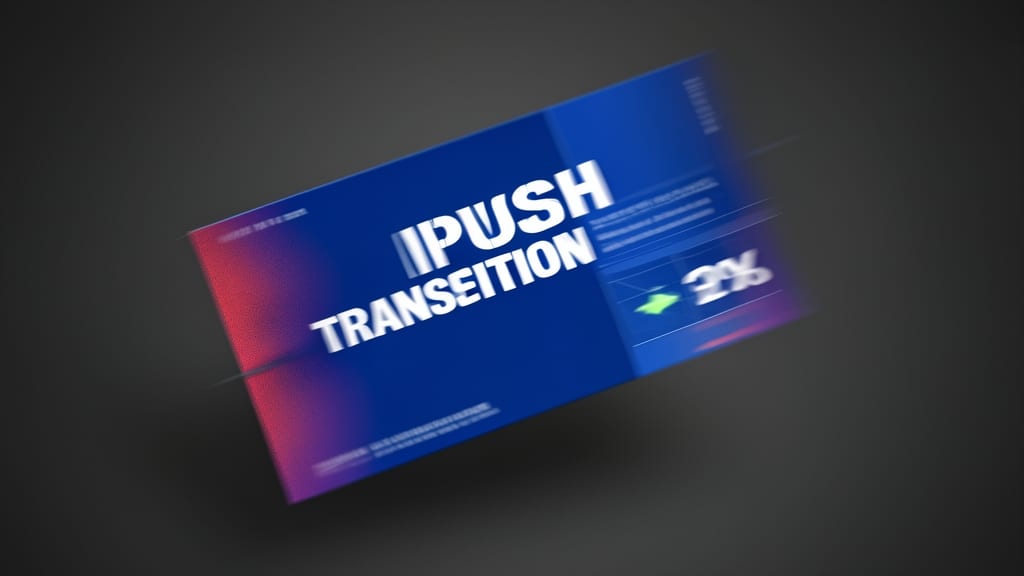
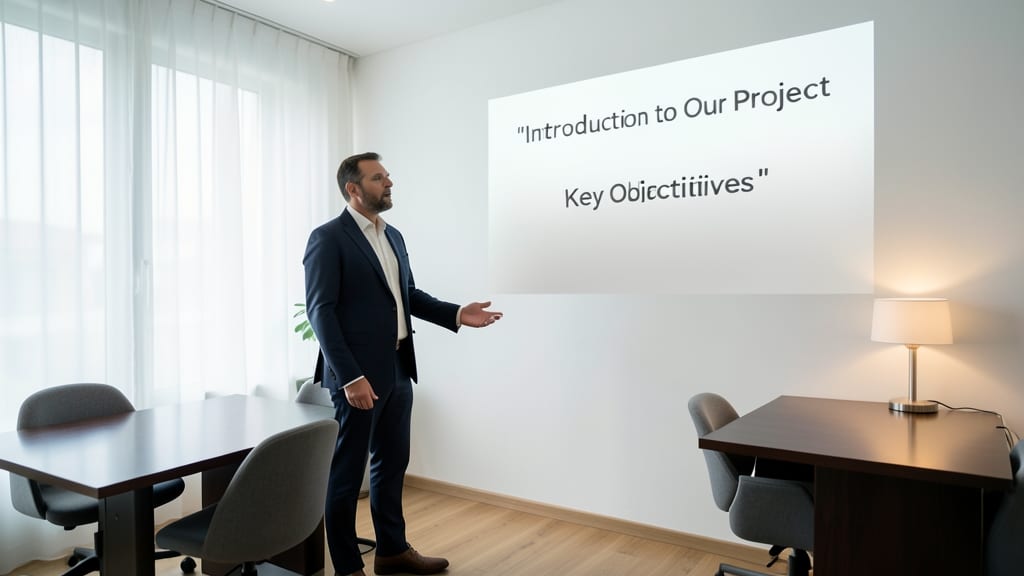
Need to inject energy into your pitch or guide your audience through a narrative arc? The Push Transition delivers exactly that with its bold, directional motion—perfect for marketing and sales decks where momentum matters.
This effect slides your current slide out in one direction (left, right, up, or down) while the next slide pushes in from the opposite side, creating a cinematic shift that feels intentional. You can adjust the speed and direction to match your pacing, and it works seamlessly across PowerPoint 2016, 2019, and 365 (including Mac versions).
Ideal for storytelling presentations where topic transitions need emphasis—think product launches or client proposals—this transition keeps your audience engaged without overwhelming them. ✨
Zoom Transition
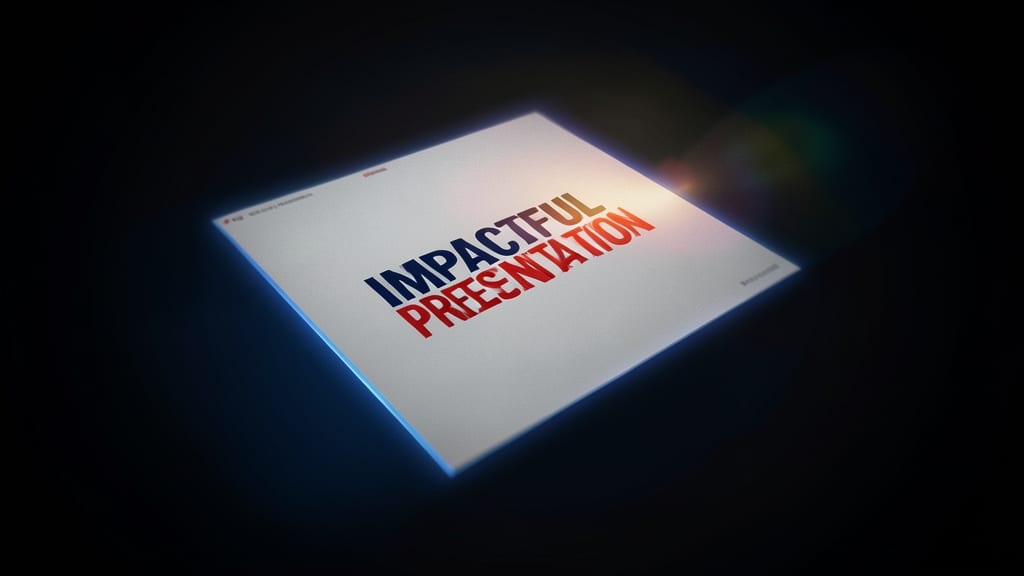
Need to make a single slide feel like the climax of your presentation? The Zoom Transition delivers exactly that—smoothly pulling the audience’s focus toward your most critical content with a cinematic zoom effect. Unlike directional transitions like Push, this one creates a focal point by scaling in on your slide, making it ideal for keynote moments or data-driven conclusions.
Available in PowerPoint 2013 and later (including Office 365), this transition lets you control the speed and direction (zooming in or out) to match your pacing. Pair it with a sound effect (like a subtle whoosh) for extra impact, or keep it silent for a sleek, professional look. The effect works best on slides with high-contrast visuals—think bold titles or minimalist graphics—to ensure the zoom effect isn’t lost.
Perfect for executive summaries, product launches, or award presentations, this transition turns a standard slide into a memorable highlight. Just avoid overusing it—reserve it for slides where you want to command attention. ✨
Wipe Transition
Teaching complex concepts? The Wipe Transition in PowerPoint lets you reveal content like drawing back a curtain—perfect for step-by-step explanations or timelines. Unlike abrupt cuts, this effect mimics a shutter or blind pull, creating a natural flow that guides your audience’s focus.
You can customize the direction (left, right, up, or down) and speed to match your pacing. It’s especially effective for educational slides where clarity matters—think historical timelines, math proofs, or software tutorials. The gradual reveal keeps attention locked on your narrative rather than flashy distractions.
Educators and trainers rely on this transition to maintain engagement without overwhelming the audience. Try it for your next lesson—your students (or clients) will notice the difference. ✨
Split Transition
Need to visually separate two contrasting ideas or showcase a panel discussion? The Split Transition delivers a bold, cinematic effect that divides your screen into distinct sections—perfect for presentations where parallel content demands equal attention.
Available in both horizontal and vertical orientations, this transition creates a dramatic reveal by splitting your slide along a clean line. You can customize the split direction, timing, and even add a subtle shadow effect for extra depth. It works seamlessly in PowerPoint 2016 and later, including the Mac version, and pairs well with dual-monitor setups for true side-by-side presentations.
Ideal for comparison slides, debate formats, or product showcases, this effect ensures your audience instantly grasps the division between topics. Just avoid overusing it—save it for moments when the visual separation strengthens your message. ✨
3D Rotate Transition
When your presentation needs to feel like stepping into another dimension—literally—the 3D Rotate Transition delivers. This effect spins your slides along the X, Y, or Z-axis, giving your audience a sense of depth and immersion that flat transitions simply can’t match.
You can customize the rotation angle (up to 360 degrees) and axis, making it perfect for showcasing 3D models, architectural renderings, or spatial designs. The transition works seamlessly in PowerPoint 2016 and later, including Mac versions, and pairs well with embedded videos or 3D objects for a truly dynamic reveal.
Architects, designers, and tech presenters will love how this effect makes complex spatial concepts feel tangible. Just pair it with a short duration (1-2 seconds) to avoid overwhelming your audience—less is more with this showstopper. ✨