
Software
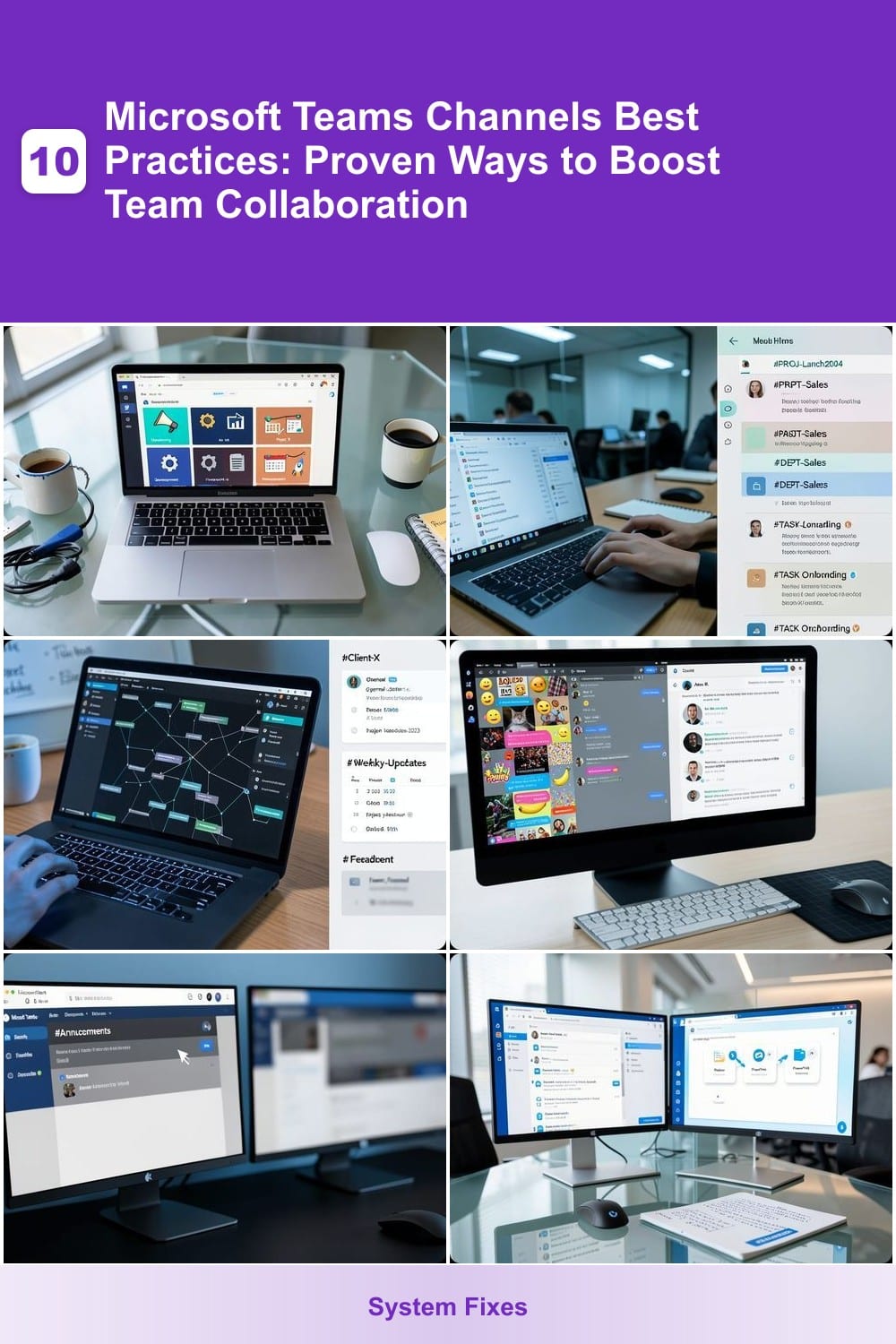
Microsoft Teams channels can transform teamwork—but only if used strategically. These 10 best practices will help you organize workflows, reduce clutter, and keep your team’s communication focused and productive.
Organize Channels by Team Functionality
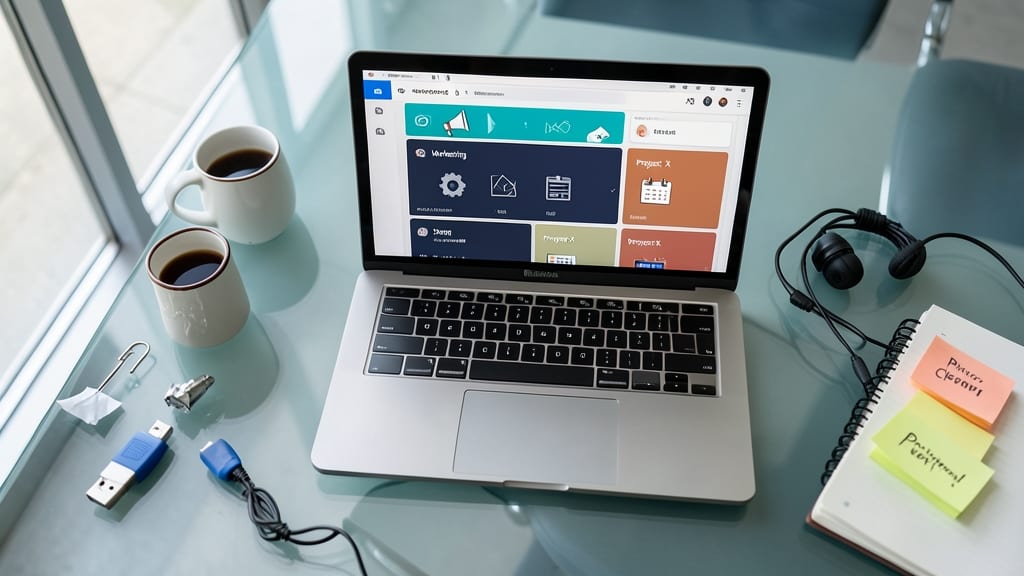
Ever feel like your Microsoft Teams channels are turning into a digital junk drawer? Grouping them by team function (like Marketing or Development) or project type keeps discussions focused and easy to find—no more scrolling through irrelevant chats.
Start by creating department-specific channels (e.g., #DEV-Frontend, #MKT-Campaigns) and project-based ones (e.g., #PROJ-Q3-Launch). Use the Teams "General" channel sparingly—reserve it for high-level updates only. This structure ensures developers stay in dev channels while marketers focus on theirs, cutting through the noise.
This approach works best for mid-sized teams or companies with clear departments, where cross-team collaboration still needs boundaries. Try it for a month and watch productivity climb! ✨
Use Standardized Channel Naming Conventions
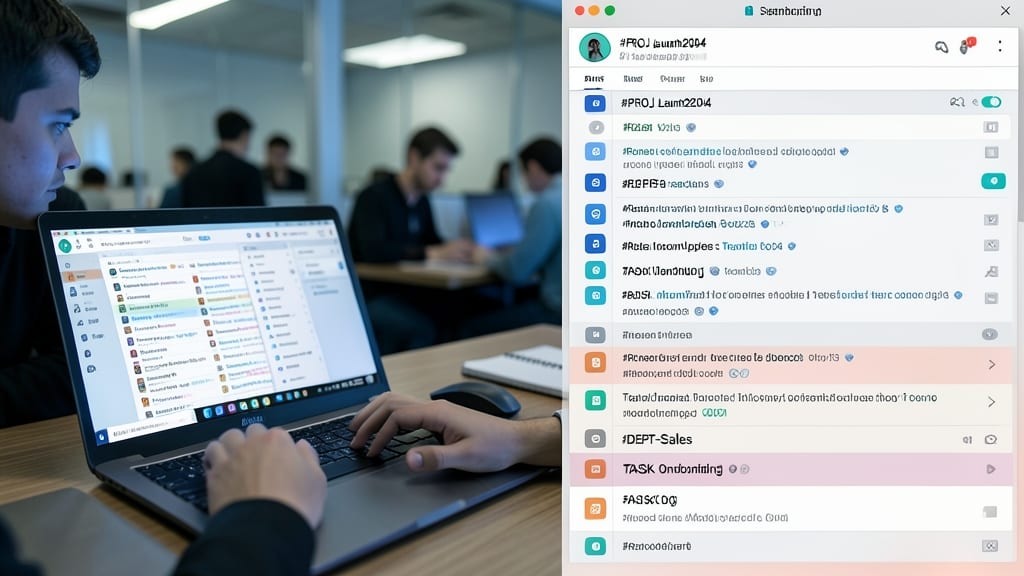
Imagine a new hire scrolling through 50+ Teams channels—without clear naming, they’ll waste hours guessing where to start. Standardized prefixes like #PROJ-Launch2024 or #DEPT-Sales turn chaos into instant clarity by grouping discussions logically.
This approach works because it mirrors how your brain organizes files: by project type or department. For example, #FIN-Q4 instantly tells accountants where to find quarterly reports, while #MKT-Campaign flags marketing assets. Teams even lets you use emoji prefixes (📊 for data channels, 🎨 for design) for visual scanning.
Best for remote teams or departments with frequent turnover—new members jump in without orientation. Start with a template like #DEPT-[Role] or #PROJ-[Code] to enforce consistency across teams. ✨
Limit Channels to Essential Topics Only
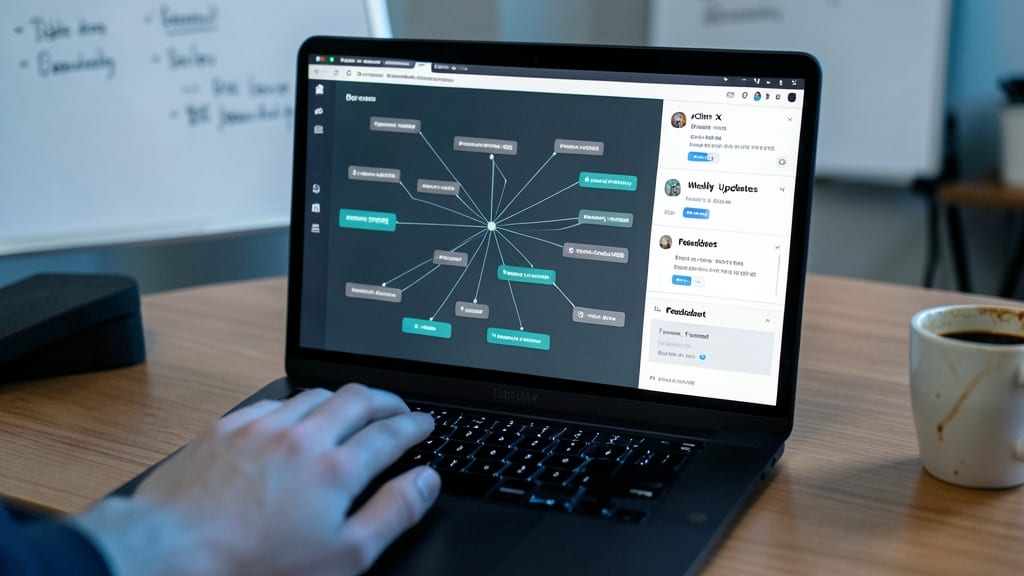
Drowning in a sea of channels? Fewer, focused channels cut through the noise and boost productivity by keeping discussions relevant. Instead of sprawling across dozens of topics, prioritize only what matters—like #Client-X for project work or #Weekly-Updates for team syncs—and archive the rest.
Microsoft Teams lets you archive inactive channels with a single click, preserving history without cluttering your workspace. For example, a channel like #2023-Q1 can stay accessible via search while disappearing from daily view. This approach ensures your team spends less time scrolling and more time collaborating effectively.
This strategy works best for remote teams or departments with tight deadlines, where clarity and focus directly impact output. A tidy channel list means faster onboarding for new hires and fewer missed messages. ✨
Enable Channel Moderation for High-Volume Teams
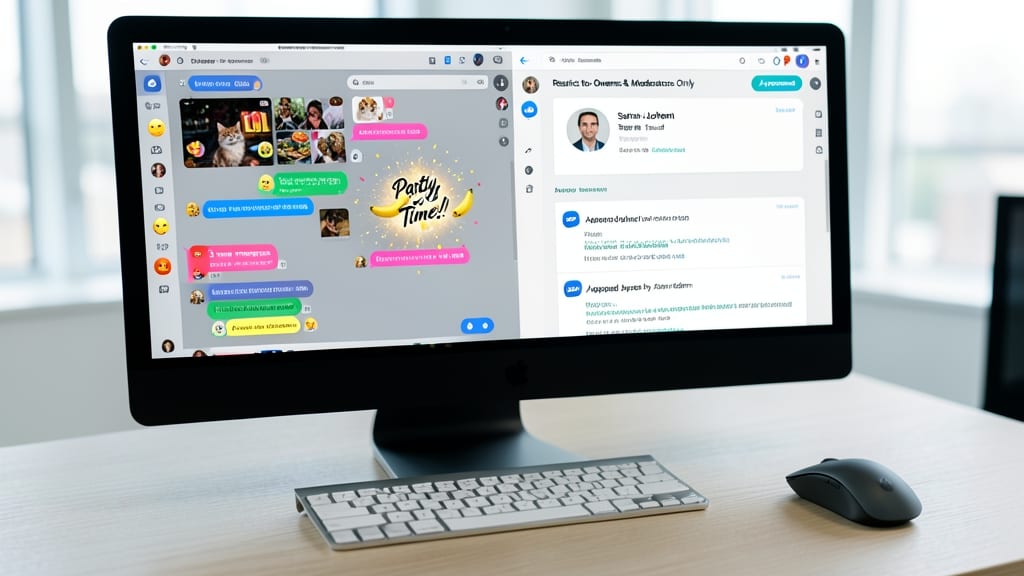
When your team’s channels start feeling like a free-for-all, channel moderation becomes your secret weapon. By restricting posting permissions to team owners or designated moderators, you instantly cut down on off-topic chatter, memes, and random tangents that derail productivity.
In Microsoft Teams, this is as simple as navigating to Channel Settings > Permissions and selecting "Only owners can post." For larger teams, assign moderators (via the Manage Team tab) to oversee discussions while keeping the floor open for key contributors. This works especially well for channels like #Client-Updates or #Product-Launch, where focus is critical.
Perfect for high-traffic teams (like sales or customer support) or remote-first companies where unchecked conversations can spiral. With moderation in place, your channels stay sharp, professional, and aligned with your team’s goals. ✨
Pin Frequently Used Channels at the Top
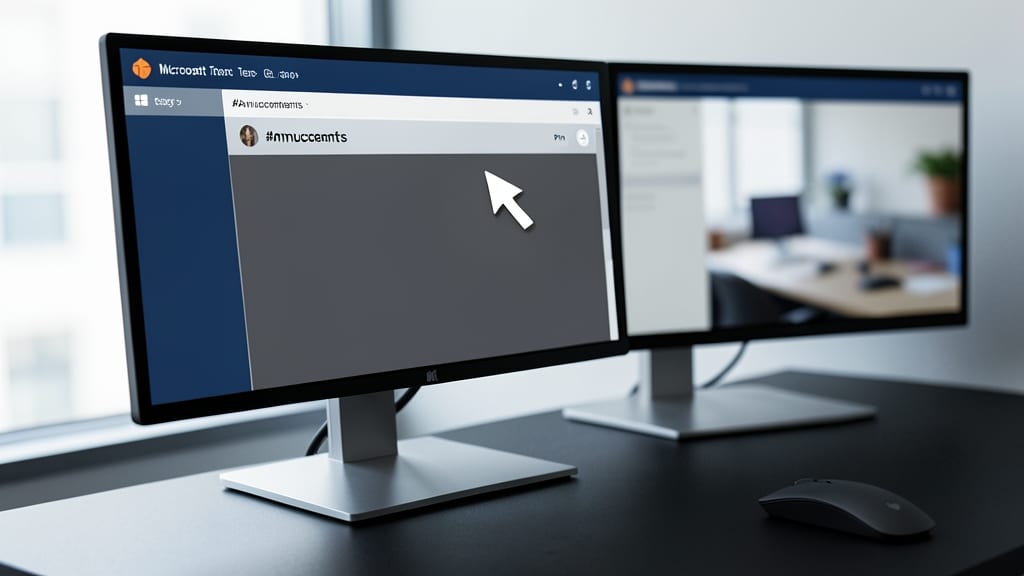
Tired of scrolling endlessly to find critical updates in Microsoft Teams? Pinning your most important channels—like #Announcements or #Support—ensures they stay visible at the top, saving time and reducing frustration.
To pin a channel, simply click the three-dot menu next to its name and select "Pin to top." This feature is perfect for channels with high traffic or time-sensitive discussions, like company-wide updates or client-facing support threads. Pinned channels remain accessible even as your list grows, making them ideal for remote teams or fast-paced environments.
This is especially useful for managers overseeing multiple teams or IT support staff who need quick access to critical channels. With pinned channels, everyone stays on the same page—no more missed notifications or buried messages. ✨
Leverage Channel Templates for Consistency

Tired of reinventing the wheel every time a new team joins your organization? Microsoft Teams’ pre-built channel templates (like Marketing, Retail, or Support) cut setup time in half by applying proven structures—including tabs, apps, and permissions—with just a few clicks.
These templates ensure every team follows the same workflow rules, from standardized tabs (e.g., "Documents," "Announcements") to pre-configured apps (like Planner or Forms). For example, the Sales template automatically includes a "Deals Pipeline" tab, while the HR template sets up an "Onboarding Checklist." No more guessing which channels need what tools—just deploy and go.
Perfect for IT admins managing multiple teams or department leads launching new projects. Save hours of manual configuration and keep consistency across your entire workspace. ✨
Archive Inactive Channels Quarterly
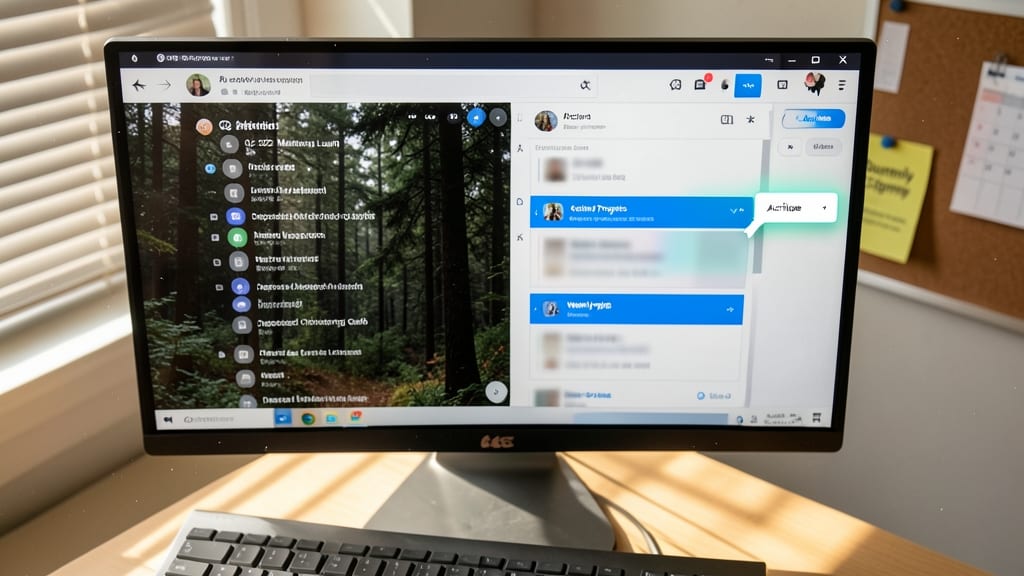
Ever feel like your Teams workspace is drowning in channels from past projects that no one uses anymore? A quarterly archive cleanup keeps your active channels lean and searchable—without losing valuable history.
Microsoft Teams makes archiving effortless: simply right-click a channel, select Archive, and it’s instantly hidden from the main view but remains accessible via search. This one-click process preserves all files and messages while decluttering your dashboard. Schedule a team-wide reminder every quarter to review and archive channels tied to completed initiatives, ensuring only relevant discussions stay front and center.
This habit is perfect for growing teams or departments with frequent project turnover, like marketing or development squads. A tidy workspace means faster onboarding and smoother collaboration. ✨
Integrate Third-Party Apps Strategically
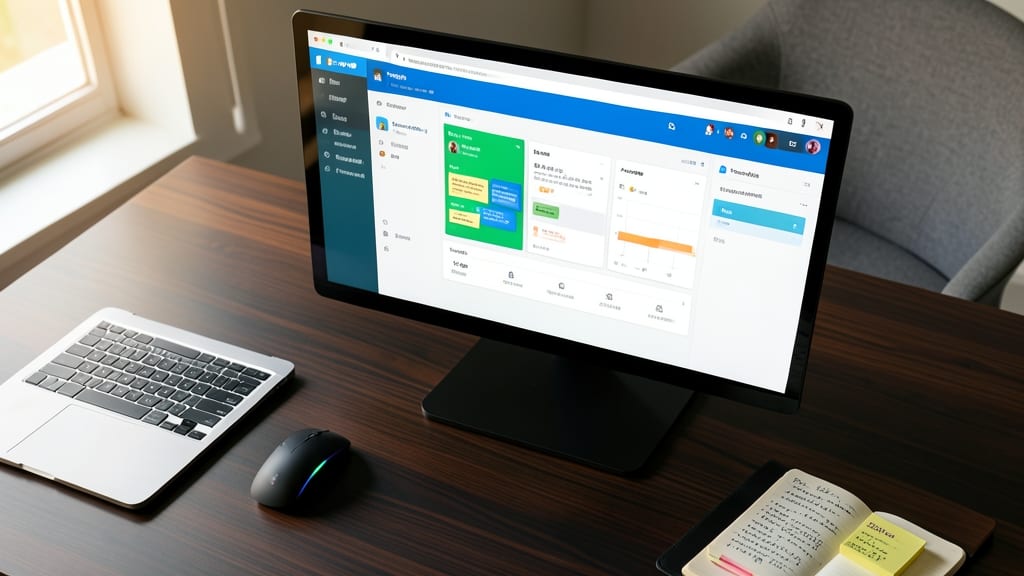
Want to turn Teams into a true productivity hub without drowning in tabs? Embedding third-party apps like Trello, Asana, or Google Drive directly into channels keeps workflows centralized—no more context-switching between tools.
Start with one essential app per channel (e.g., Trello for project tracking in #Dev-ProjectX) to avoid clutter. Microsoft Teams supports 100+ integrations, including Slack for cross-team chats and Zoom for quick meetings—all accessible from the same interface. The key is strategic placement: only add apps that directly enhance the channel’s purpose, like embedding a shared calendar in #Marketing-Campaigns.
This approach works best for project teams managing multiple tools (e.g., devs using GitHub + Jira) or remote teams needing unified access to docs and tasks. Just remember: fewer apps = faster adoption. ✨
Set Clear Channel Descriptions and Guidelines
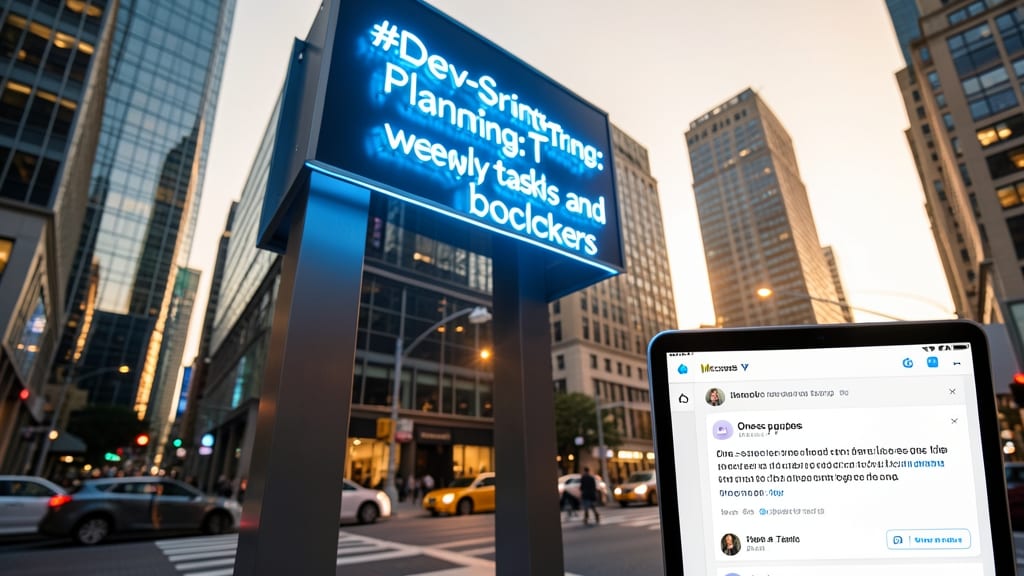
A clear channel description acts like a signpost in a bustling city—it instantly tells contributors where they belong. Instead of vague names like “#Updates,” use purpose-driven labels like “#Dev-Sprint-Planning: Track weekly tasks and blockers” to set context immediately.
Add a one-sentence purpose statement in the channel header (e.g., “#Client-Feedback: Share only approved client comments”) and pin a guidelines tab with rules like “No marketing pitches” or “Use threads for long discussions.” This reduces off-topic noise and saves time for admins who’d otherwise sift through irrelevant posts.
Teams with cross-functional roles (e.g., designers + developers) benefit most—clear guidelines prevent confusion when stakeholders join channels outside their core focus. Start with a template like “#PROJ-X: [Purpose] | Rules: [1-2 key rules]” to standardize expectations. ✨
Train Teams on Channel Etiquette
Even with the best-organized channels, teams still struggle with notifications, threads, and respectful communication. A 15-minute workshop on @here vs. @channel and thread etiquette can cut down on noise and keep discussions focused.
Teach your team to use @here for urgent messages (only alerts active users) and @channel sparingly (notifies everyone). Show them how to reply in threads for detailed discussions instead of cluttering the main channel. A quick demo of pinning key messages and muting notifications for non-critical channels rounds out the training.
This works best for remote or hybrid teams where clear communication prevents misunderstandings. Start with a slideshow or Loom video, then let team members practice in a sandbox channel. ✨